
How to remove a watermark from a picture
- Add the picture. Drop it anywhere on the page, paste it, or click the box to choose a file. Phone photos, including iPhone HEIC, work too.
- Paint over the watermark. Use the brush to cover the letters or the logo. A red tint shows what you have marked. Erase a mark takes paint back, Undo stroke removes the last stroke, and Clear marks starts again.
- Press Remove the watermark. The first time, the page downloads a model (27 MB for Fast, 208 MB for Best quality), and your browser keeps it.
- Compare. Switch the view to Original to see the difference. If the result is not right, Undo last removal brings the picture back, and you can try again with a wider brush or the other quality setting.
- Download the picture. It is saved at its full size as a JPG, PNG or WebP, named after your file with
-removedadded.
Use it on your own pictures
This tool is for pictures you own or have permission to edit. Good reasons to use it: you stamped your own photo and lost the clean original, a camera put a date on a print you scanned, or you are redoing the watermark on your own work in a different place.
It is not a way to get a stock photo or someone else's work without paying or asking. Taking a watermark off does not give you the right to use the picture, and the person who owns it decides that. If a mark sits on a picture you want to use, the honest route is the licensed, clean version from its owner.
Painting it well
- Cover the whole mark, a little beyond. Include the soft shadow or glow many watermarks have. A thin line of letter left outside your paint is treated as part of the picture and continued, which looks like a faint outline. The Cover the edges slider (0 to 20, starting at 4) grows your paint by a few pixels to catch this.
- One text line is one stroke. Pick a brush a little taller than the letters and drag once along the line. It is quicker and tidier than dabbing.
- Zoom in for small marks. The brush size is in screen pixels, so it looks the same at any zoom. Use + to paint precisely and Fit to see the whole picture. Ctrl + Z (or Cmd + Z) undoes the last stroke.
- Several marks are fine in one go. Each separate area is filled in turn, and the status line tells you how many.
- Remove big marks in pieces. The model fills a window around your paint at a fixed size of 512 by 512 pixels, so the smaller the painted area compared with the picture, the sharper the fill.
Which watermarks come off cleanly?
We put marks on four different photos with our own watermark tool, painted over them, and removed them with Best quality, then looked at every before and after. The answer depends much more on what is under the mark than on the mark.
| What is under the mark | What we saw |
|---|---|
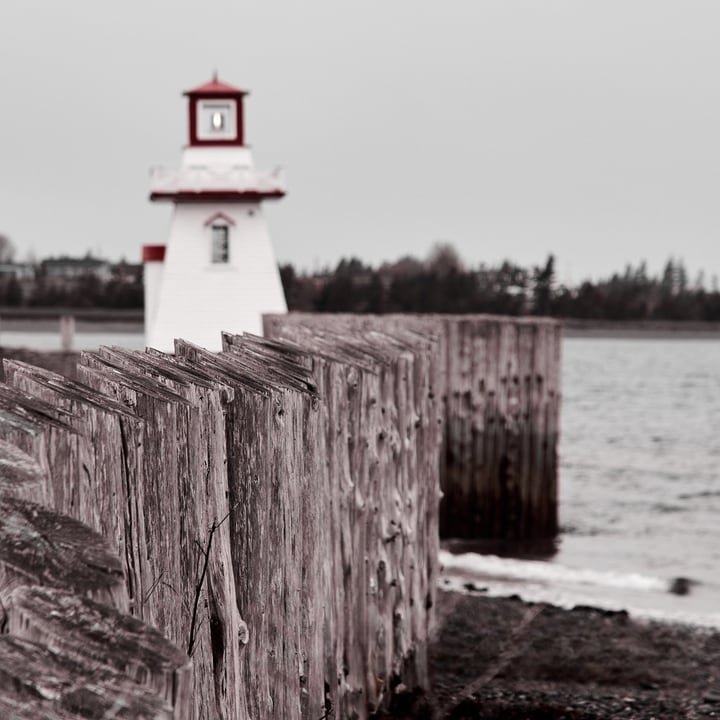
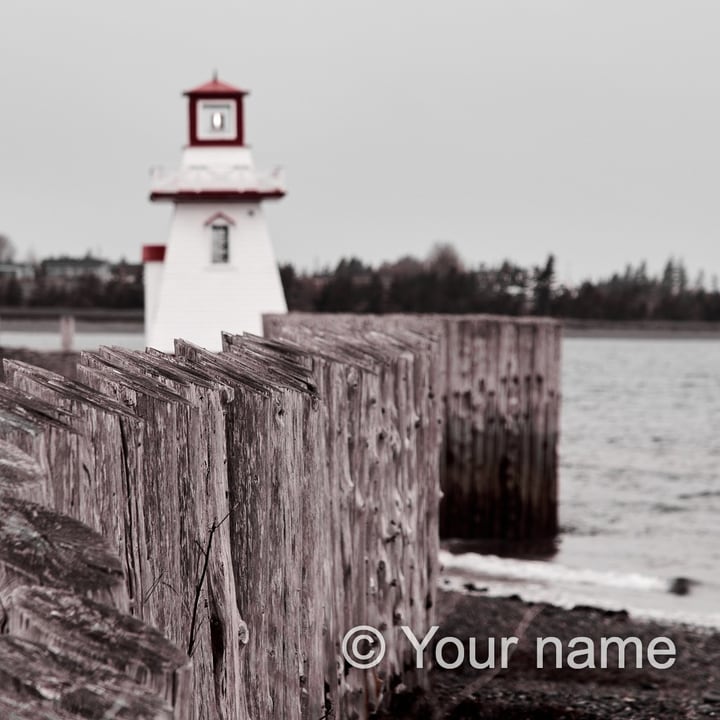
| Road, sky, water, a plain wall, a blurred background | Removed cleanly. A corner mark over a parked car's asphalt and one over the gravel and wooden posts at the foot of a pier left no visible trace when we put the two pictures side by side. |
| Wood, grass, leaves, rock | The mark is gone, but the filled area is smoother than the texture around it, and sometimes a little darker. On a meadow or in trees it shows as a soft patch when you look for it. |
| Fine structure: a car's grille and chrome lettering, a face, text, a repeated pattern | A believable fill, but not what was there. A mark across a grille left the bars smeared and cut away part of the car's chrome lettering. The tool cannot know what the lettering said. |
| A mark repeated over the whole picture | Every mark is gone, but so is some of the picture: a lantern on a lighthouse came back bent, a snowy peak came back softer, and a branch and a patch of grass were left smeared. It also takes about two minutes. |
Measured results by watermark style
The marks came from our four Add Watermark styles (the text "© Your name"), on four photographs: a mountain lake, a meadow, a lighthouse with a wooden pier, and a car in a parking lot. We painted exactly over each mark (its own pixels grown by 12 pixels, which is tidier than most people paint) and used Best quality. "Brightening" is how much lighter the mark made its own pixels on average (out of 255); after removal it should be near 0. The times were measured on a busy Apple M1 Max.
| Style | Share of the picture painted | Brightening before | Brightening after | Time |
|---|---|---|---|---|
| Corner (one mark) | 3.9% | +31 to +62 | −11 to +11 | about 25 seconds (Fast: about 3), 1 area |
| Big, in the middle | 7.3% | +18 to +31 | −10 to −1 | about 23 seconds, 1 area |
| One stripe | 4.9% | +19 to +29 | −13 to +4 | about 54 seconds, 3 areas |
| Tiled (over everything) | 22.4% | +13 to +21 | −7 to −2 | about 2 minutes, 7 areas |
So the mark's lightening was gone in every case. What was not equal to the original was the fill itself: it is a guess at what was underneath, and on texture and structure it is a different guess from the real thing (see the table above). We do not count a fill as "perfect" because the mark is gone.
Fast or Best quality?
The two settings are the same as in the object remover: Fast is a small model (27 MB) and Best quality is a larger one (208 MB). For a corner mark on our four photos, Fast took about 3 seconds and Best quality about 25 seconds, both including loading the model from the browser's cache (measured on a busy Apple M1 Max). Both took the mark's lightening away: it was −6 to +16 levels with Fast and −11 to +11 with Best quality.
Zoomed in, Best quality was cleaner whenever the mark was next to something with a shape of its own. Over the reflection in the lake, Fast invented new shapes in the water. Beside a car's amber turn-signal lamp, Fast smeared the lamp into an orange smudge, and Best quality left it alone. Over plain asphalt or grass the two were about the same, and both leave a smoother rectangle on grass. So try Fast first, since it takes seconds, and use Best quality if the mark touches an edge or an object. Stripes and tiled marks were only measured with Best quality.
What stays the same
Only the area around your paint can change. This tool runs the same engine as our object remover, and we checked it there: after a removal, every pixel beyond the filled area was byte for byte identical to the original, and the picture is saved at its full size. The filled area blends into its surroundings over a few pixels.
What it cannot do
- It invents what is underneath. A watermark covers part of the picture, and the covered part is gone. The fill is a plausible continuation, never the real thing.
- It cannot remove invisible watermarks or Content Credentials. It only repaints the pixels you paint. Invisible marks are spread over the whole picture, and Content Credentials are stored in the file, not drawn on it. Our guide on content credentials and watermarks explains the difference.
- Large or repeated marks change the picture. A mark that covers a fifth of the picture is removed, but things it crosses are redrawn.
- Large areas look softer. A window is filled at 512 × 512 pixels and enlarged to fit your picture.
- Pictures over 24 megapixels are made smaller when you open them, and the page says so. One picture at a time; your original file is never changed.
If you add watermarks too
The reverse job is on its own page: Add Watermark puts text or a logo on one picture or a whole folder, with four one-click styles. A tip from the tests above: a small corner mark is the easiest kind to remove, a stripe or a mark over the middle is harder, and a tiled mark is the hardest, so choose the style by how much you want it to resist being removed. Keep your clean originals either way.
Privacy
- The removal happens inside this tab, and your files on disk are never changed or deleted.
- The model files are downloaded the first time from Hugging Face, a model hosting site, and your browser keeps a copy.
- For what this site collects and keeps, see our privacy policy.
Frequently asked questions
How do I remove a watermark from a picture?
Add the picture, paint over the watermark with the brush (a little beyond its edges), and press Remove the watermark. The space is filled in from the picture around it. Compare with the original, undo if you do not like it, and download the result.
Can I remove the watermark from a stock photo or someone else's picture?
Not with this tool, and not as a way around paying or asking. A watermark is there because the owner has not given you the clean picture. Removing it does not give you the right to use it. Use this tool on pictures you own or may edit, and get the licensed version of anything else.
Why is there a smooth patch, a ghost or an outline where the mark was?
Smooth patches appear on textured areas such as grass, leaves and rock, because the model fills a small window and cannot reproduce every blade. A faint outline means the paint stopped inside the mark: undo, paint a little beyond the letters and their shadow, and raise Cover the edges.
Which setting is best for removing a watermark?
Fast takes about 3 seconds for a corner mark and is fine over plain areas. Best quality takes about 25 seconds and was cleaner when the mark sat near an edge or an object: in our test Fast smeared a car's turn-signal lamp that Best quality left alone. Try Fast first, and undo and switch to Best quality if it smudges something.
Does it remove invisible watermarks, SynthID or Content Credentials?
No. It repaints only the pixels you paint. Invisible watermarks are spread across the picture and Content Credentials live in the file's data, so painting over a corner does neither. See our guide to content credentials and watermarks for what each signal is.
Why did a mark across a pattern or lettering come out wrong?
The model cannot know what was under the mark, so it invents something that looks right. On plain areas that is invisible. On a grille, a face, text or a regular pattern, the invention shows. In our tests, a mark across a car's grille smeared the bars and removed part of its chrome lettering. For these, remove less, in smaller pieces, or fix the area by hand in an editor afterwards.
How big a watermark can it remove?
One mark covering about 4 to 7 percent of the picture took about 25 seconds with Best quality. A mark repeated across the picture (about 22 percent painted) came off, took about two minutes, and redrew some of the objects it crossed. Smaller painted areas always give better results.
Will the rest of my picture change?
No. Only the area around your paint can change, and it blends in over a few pixels. The picture is saved at its full size.
Is /remove-watermarks the same tool?
Yes. /remove-watermarks and /remove-watermark both lead to this page, so there is one tool and one address to bookmark.
Is my picture sent anywhere to be edited?
No. The removal happens in your browser tab, using model files that are downloaded once. For what the site collects and keeps, see our privacy policy.