.jpg)
How to make a sticker from a photo
- Add your pictures. Drop one or many anywhere on the page, paste one, or click the box to choose files. Phone photos, including iPhone HEIC, work too.
- Wait for the subject. The first time, the page downloads a model (44 MB for photos, 176 MB for drawings) and your browser keeps it. Then each picture takes about nine seconds on our test computer. The preview appears when the subject has been found.
- Choose what the sticker is for. WhatsApp, Telegram or Large PNG. The hint under the buttons says what you will get.
- Adjust it. The outline, its color and roundness, an optional shadow, and how far the cut is pulled in from the subject's edge. Switch Preview on between the checkerboard, light and dark to see how it looks on a chat background.
- Press Make the sticker, then download each sticker, or all of them as a ZIP.
Your original files are never changed. Each sticker is named after its picture with -sticker added.
What the apps ask for
We read these from the apps' own pages on 19 October 2026. Apps change their rules, so check the page of the app you use if a sticker is refused.
| App | What its own page says about a static sticker | What this page makes |
|---|---|---|
| WhatsApp (WhatsApp's sticker repository) | Exactly 512 × 512 pixels. WebP. A transparent background. A static sticker is at most 100 KB. An 8 px white (#FFFFFF) stroke around the outside is recommended, so that the sticker stays visible on any chat background. | A 512 × 512 WebP with a see-through background and an 8 px white outline by default. The page tries WebP quality settings until the file is under 100,000 bytes (a little stricter than 100 KB), and tells you if it cannot. |
| Telegram (Telegram's sticker page) | A static sticker is a PNG or WebP file. One side must be exactly 512 pixels and the other 512 pixels or less. The page names no file size limit. | A PNG (or WebP) whose longer side is exactly 512 and whose other side follows the shape of the sticker. |
That is the part we can check. Getting the file into the app is up to the app: WhatsApp and Telegram have their own ways of adding stickers, and this page only makes the image files. It makes static stickers only, not animated ones. WhatsApp's page also asks for a 96 × 96 pixel tray icon (at most 50 KB) for each sticker pack, which this page does not make: make it from one of the stickers with Resize Image.
What the sliders do
Every length is given for a 512-pixel sticker and scaled to the real size, so a Large PNG or a Telegram sticker looks like the preview.
| Setting | What it changes |
|---|---|
| Outline width | How far the outline reaches out from the subject, from none to 40 px (8 px by default, the width WhatsApp suggests). The outline is the subject's shape grown by that many pixels, with a smooth edge. |
| Outline color | White by default. Any color works; a dark outline suits a light chat background. |
| Rounded outline | How much the outline is smoothed. At 0 it follows every notch and gap of the subject, such as the space between a bird's legs. Higher values round the outline off and fill in notches and holes narrower than about twice the setting (up to 3% of the sticker's long side), the way a die-cut sticker looks. |
| Soft shadow | A blurred, slightly offset copy of the outline shape under the sticker, from off to a black at most 70% opaque. The sticker is made a little smaller to leave room for it. |
| Trim the edge | How far the cut is pulled in from the model's edge, from 0 to 10 px (2 by default). A small trim removes the fringe of the old background that fur and hair leave behind. It also removes thin things: the spokes of a bicycle wheel survive at 0.5 and are gone at 2. |
| Edge | How sharp the cut is: from a nearly hard edge to a soft blend. The same slider as in the Background Remover. |
| Picture type | Photo or object (the default) or Drawing or anime, which uses the second model. See below. |
How it works, and what the model does and does not do
The subject is found by a segmentation model, a neural network that decides for every pixel whether it belongs to the main subject. It is the same pair of models as the Background Remover: IS-Net "general use" (an 8-bit version, MIT license, 44 MB) for photos and objects, and IS-Net Anime (Apache-2.0, 176 MB) for drawings. Both are downloaded once from Hugging Face and kept by your browser. Everything after that is plain image maths on the picture in your tab, which is why the sliders are live (a 512-pixel sticker is redrawn in about 60 milliseconds on our test computer, a 1024-pixel one in about 240):
- The opacity. The model's mask is enlarged to the sticker's size and turned into opacity with the Edge curve.
- The subject's own colors. At a soft edge, a pixel is a mix of subject and old background. An estimate of the subject's own color (the "blur fusion" foreground estimate described by Marco Forte in 2021, which we wrote ourselves from the published method) takes the old background out of those pixels, so the sticker has no halo of the old background's color. We checked it against the truth: we mixed a dog and a cat with four flat backgrounds (blue, green, white, black) using the model's own mask, then asked the estimate to recover the subject's colors at the edge. The recovered colors were 12 to 87 percent closer to the true ones than the mixed pixels themselves. For a thin headphone band it did not help (between 14 percent worse and 37 percent better): thin things have no clean pixels nearby to learn from.
- The outline. The distance from every pixel to the subject is measured exactly (a Euclidean distance transform), the outline is every pixel within the outline width, and the rounding is a closing: grown by the width plus the rounding, then shrunk by the rounding.
- The layers. Subject over outline over shadow, saved with a see-through background.
We checked each of these steps against a separate implementation in Python (numpy and scipy) on real masks: they agree to rounding.
The model is the part that can be wrong. It decides what the main subject is, and you cannot point at what you want. If it keeps too much or too little, try the other picture type, crop the picture so the subject you want stands out, or use the Cut Out Object tool, where you click the thing you want.
What works well, and what does not
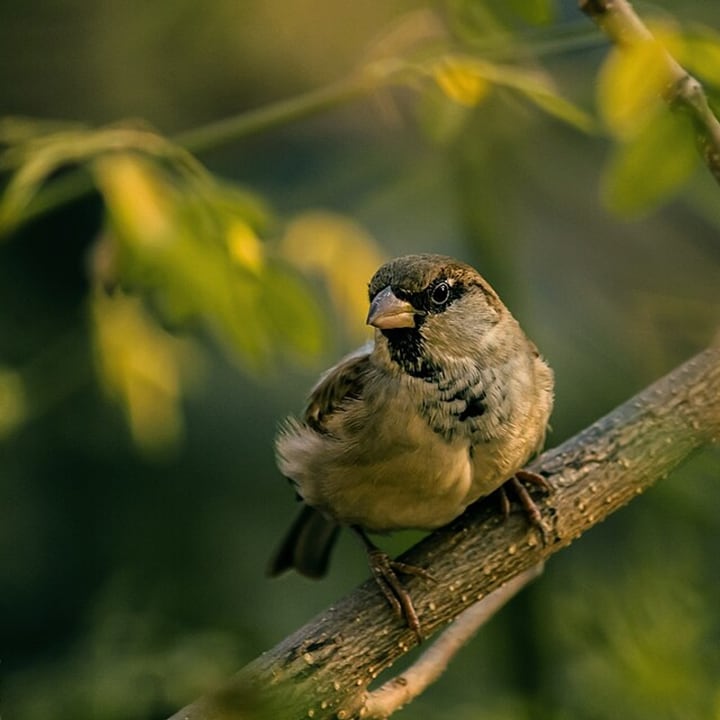
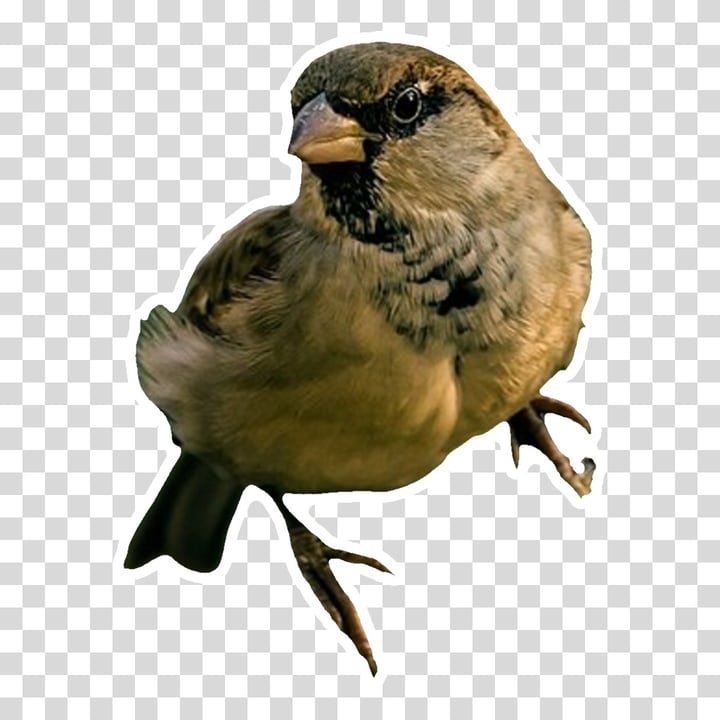
- Works well: a pet, a bird, a toy, a product or a drawn character that clearly differs from what is behind it. A sparrow on a branch came out with its legs and tail feathers, a retriever, a fox and a cat came out as clean cutouts, and a pair of headphones on white came out with its thin band.
- Hair and fur against a busy background: the tips of hair keep a little of the old background's color. On a retriever against green leaves, a green fringe stayed along the top of its head at a trim of 0.5 px, was mostly gone at 3 px on a dark chat background, and shows more on a light one. A calmer background, or a higher trim, hides it.
- Thin things: wires, spokes, whiskers and antennas are first to go when you raise the trim.
- A subject that runs off the edge of the picture: the sticker has a straight edge there, because nothing is drawn that is not in the picture.
- Several subjects: the model may keep all of them, and anything next to the subject that looks like part of it. In our tests a car in front of a truck came out with bits of the truck.
- The picture type is your choice. The Background Remover guesses it from how flat the picture is, but a product photo on a pure white backdrop looks flat too, and the drawing model found nothing in a headphone photo (we tried). Here Photo or object is the default, and Drawing or anime is one click away.
Size, speed and limits
- Speed. Finding the subject takes about nine seconds per picture on our test computer, with either model, once the model is downloaded. Phones and older computers take longer. After that, every slider change is a fraction of a second.
- File size. For WhatsApp the page keeps the highest WebP quality that fits under 100,000 bytes. In our test, a retriever came out at 46 KB, a cat at 73 KB and the headphones at 2 KB. A very detailed picture with a thick outline can still be too large, and then the page says so and does not pretend.
- WebP. Some browsers cannot save WebP from a canvas. If yours cannot, the result line says so and the file is a PNG, which Telegram accepts but WhatsApp does not.
- Small pictures. A picture smaller than the sticker is enlarged, and the result line says it is a little soft.
- Big pictures. A picture over 16,384 pixels on a side is refused with a message. The model looks at a 1024 × 1024 version of your picture, so the outline of the cut cannot be sharper than that allows.
- See-through pictures. A PNG that is already see-through keeps its see-through parts.
Where the work happens
- The sticker is made inside this tab. The page downloads a model from Hugging Face the first time you use it, and your files on disk are never changed or deleted.
- For what this site collects and keeps, see our privacy policy.
Frequently asked questions
How do I make a WhatsApp sticker from a photo?
Add the photo, choose WhatsApp, check the preview and press Make the sticker. You get a 512 × 512 WebP with a see-through background and an 8 px white outline, saved under 100 KB. WhatsApp has its own ways of adding stickers; this page makes the image file to the size WhatsApp's sticker page asks for.
What size does a Telegram sticker have to be?
According to Telegram's sticker page, a static sticker is a PNG or WebP file with one side of exactly 512 pixels and the other 512 pixels or less. Choose Telegram: the longer side of your sticker is exactly 512 pixels.
Why a white outline?
WhatsApp recommends an 8 px white stroke around each sticker so that it stays visible on light and dark chat backgrounds alike. The page does that by default. You can change the color, the width, or remove the outline.
Can I make animated stickers?
No. This page makes static stickers only: one picture, one file.
Why does the sticker have a green or blue fringe?
The model's cut is not perfect on fur and hair, and the tips of hair keep some of the old background's color. Raise Trim the edge to pull the cut inward, or lower Edge for a harder cut. A picture with a calmer background gives a cleaner edge.
Why did my sticker lose thin parts, like spokes or whiskers?
Trimming the edge removes anything thinner than about twice the trim. Lower Trim the edge to 0.5 or 0 to keep thin things, and accept a little more of the old background at the edge.
Why is a drawing or an anime picture treated differently?
Drawings and photos are different problems for a segmentation model, so there are two models. Choose Drawing or anime for artwork: it uses the larger model (176 MB, downloaded once). Photo or object is the default because it also works for products, toys and pets.
The sticker is too big for WhatsApp. What can I do?
Use a simpler picture, a smaller outline or no shadow. A plain subject compresses much better than a busy one. The page already chooses the highest WebP quality that fits under the limit, and tells you when no quality does.
Is my photo sent anywhere to be cut out?
The cutting is done in your browser tab; the model is downloaded to it. For what the site collects and keeps, see our privacy policy.