Which tool do I need?
| You want to… | Use | Good to know |
|---|---|---|
| Fix a color cast or even out a batch of photos | Batch Color Fixer | Works on many pictures at once, with white balance, contrast, saturation and gamma. |
| Take grain out of a dark or high-ISO photo | Denoise Image | A 73 MB model. It does not fix blur. |
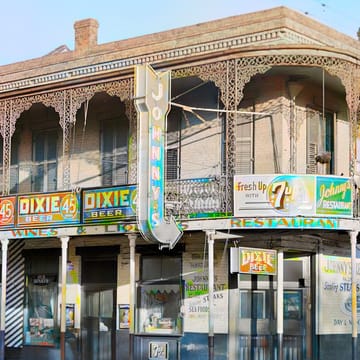
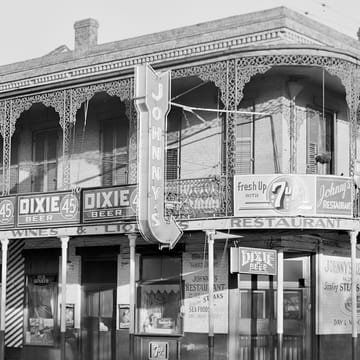
| Add color to a black and white photo | Colorize Photo | A 130 MB model. The colors are a guess, not the true colors. |
| Turn a sideways photo upright, or tilt it by an exact angle | Rotate & Flip Image | Drag to rotate, or type the angle. |
| Cut a picture to a square, a ratio, an exact box or a circle | Crop Image | Saves exactly the pixels you boxed. |
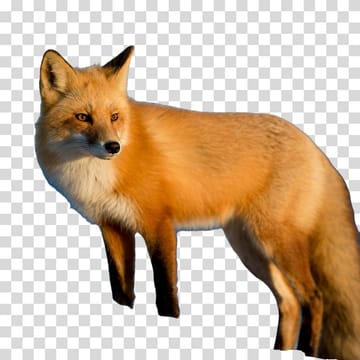
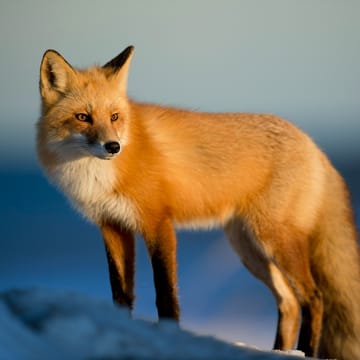
| Cut the subject of a photo out of its background | Background Remover | 44 MB for photos, 176 MB for anime and drawings. One picture at a time. |
| Cut out one particular thing by clicking it | Cut Out Object | About 45 MB. Saves it see-through, as a mask, on a color, or with the rest blurred. |
| Make a plain white or colored background see-through | Make Background Transparent | No model. For logos, signatures, scans and product shots. |
| Paint out a person, an object or a blemish | Remove Object | Fast (27 MB) or Best quality (208 MB). The fill is a guess. |
| Remove a logo, text or date stamp from your own picture | Watermark Remover | Only for pictures you own or may edit. |
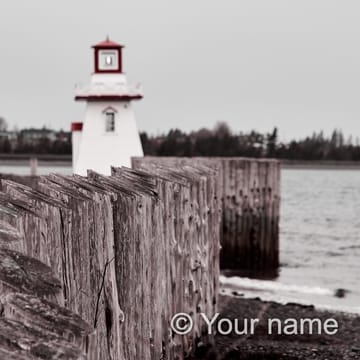
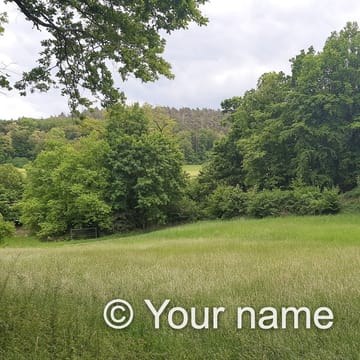
| Put your name or logo on a picture or a folder | Add Watermark | Four one-click styles, live preview, batch. |
| Join pictures side by side, stacked, or in a grid | Combine Images | Set order, spacing, border and background. |
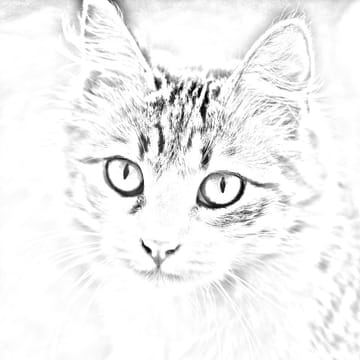
| Make a pencil drawing or a line drawing from a photo | Photo to Sketch | No model; a 12-megapixel photo in about a second. |
| Get a color code, or a picture's main colors | Image Color Picker | HEX, RGB, HSL, HSV, and a palette. |
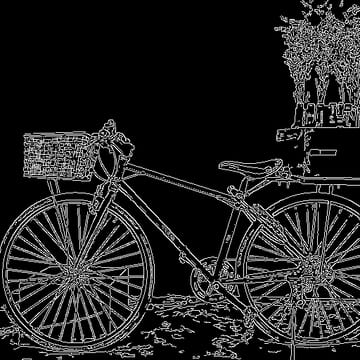
| Make an edge, line art or depth map for ControlNet | ControlNet Maps | One picture or a folder, at the size you choose. |
| Give a picture a subtle looping camera move | Photo Animator | A 27 MB depth model; saves a short video. |
Five ways to take something out of a picture
Removing a background, cutting out an object and painting something out sound alike, but they solve different problems, and picking the right one saves a lot of fiddling.
| Tool | You tell it | You get | Best when |
|---|---|---|---|
| Background Remover | Nothing: it finds the main subject | The subject on a transparent or solid background | A photo or an anime picture with one clear subject, on any background |
| Cut Out Object | Click the thing you want (and click what to leave out) | That one thing, see-through, as a mask, on a color, or with the rest blurred | There are several things and you want one in particular, such as one car of two |
| Make Background Transparent | Nothing: it finds the background color | The same picture, with every pixel of that color made see-through | The background is one flat color: logos, icons, signatures, scans, products on white |
| Remove Object | Paint over what to remove | The same picture without it, the gap filled in from around it | You want the picture to stay whole, such as a stranger in a travel photo |
| Watermark Remover | Paint over a mark | The same picture without the mark | A logo, text or date stamp on a picture you own |
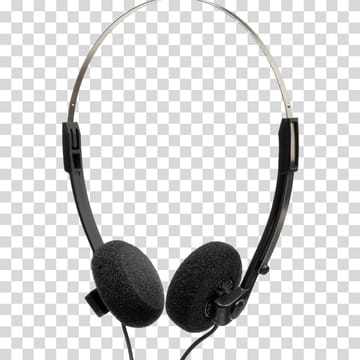
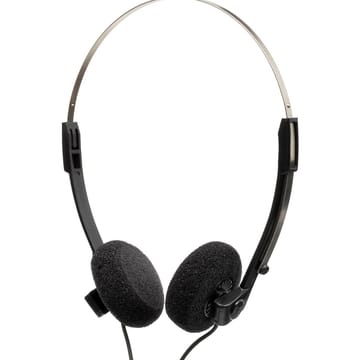
We measured the difference between the two that people mix up most. On a headphones photo against plain white, Make Background Transparent removed 88.6 percent of the picture's pixels in about half a second and kept the thin cable and metal band, with no model to download. On a dog standing on grass, the same color-based approach removed only 8.8 percent, in patches, because grass is not one color: that photo is a job for the Background Remover. A rule that rarely fails: one flat color behind it means Make Background Transparent; anything else means the Background Remover or Cut Out Object.
Tools that work well together
Order matters. Each step changes the pixels the next one sees.
An old, grainy, black and white family photo
- Rotate it upright and crop away the scan's edge.
- Denoise it first: grain looks like detail to every later tool.
- Colorize it, then fix the color if the result leans warm or cool.
- Make it larger with the Image Upscaler if you want to print it.
A product photo for a shop
- Crop to the shape your shop uses, such as a square.
- On a white studio background use Make Background Transparent; on anything else use the Background Remover.
- Remove a stray speck or a reflection of the photographer if needed.
- Add your watermark last, so it sits on the finished picture.
A logo from a drawing or a photo
- Make a Line drawing with Photo to Sketch.
- Make its white paper see-through with Make Background Transparent.
- Trace it into a vector with Image to SVG, so it scales to any size.
Training images for an image model
- Crop or resize every picture to the size you train at.
- Even out the set with the Batch Color Fixer.
- Make edge, line art or depth maps with ControlNet Maps if you train or use ControlNet.
- Then tag or caption them: see the image tagger tools and our dataset workflow guide.
What you can do to many pictures at once
The Batch Color Fixer, Denoise Image, Colorize Photo, Photo to Sketch, Make Background Transparent, Add Watermark and ControlNet Maps work on a whole folder: drop many pictures, choose the settings once, and download the results one by one or as a ZIP. The Background Remover, Cut Out Object, Remove Object, Watermark Remover, Crop, Rotate and Combine Images work on one picture at a time, because each picture needs your own choices.
What these tools are not
These are single-purpose tools, each good at one change, not a layered editor like Photoshop or GIMP. There are no layers, brushes, text or generative fill. The tools that fill in or color a picture (Remove Object, Watermark Remover, Colorize Photo) invent pixels, and their pages say plainly where that goes wrong, with measured examples. Two of them are made for your own pictures only: Watermark Remover is not a way to take the watermark off someone else's work or a stock photo.
Your pictures and your originals
Every tool here works inside your browser tab, and none of them changes or deletes the file on your disk: results are new files you download. Tools with a model download it once from a public model host and your browser keeps it. For what this site collects and keeps, see our privacy policy, and for how in-browser processing works see our guide.
Frequently asked questions
Are these image editor tools really free?
Yes. There are no accounts, no daily limits and no watermark added to your results. The site is paid for by ads and by supporters.
Do I need to install anything?
No. Open a tool, drop in a picture and use it. Tools with a model download it the first time and your browser keeps it, so the next visit is quicker.
What is the difference between the Background Remover and Make Background Transparent?
The Background Remover uses a model to find the main subject, so it works on photos with any background. Make Background Transparent only removes one color, so it is instant, needs no download and cuts clean edges on logos and white-background product photos, but cannot separate a subject from a busy background.
Which tool removes a person from a photo?
Remove Object: paint over the person and the gap is filled in from the picture around them. If you want the person on their own instead, use Cut Out Object or the Background Remover.
Will my picture lose quality?
Most tools save the picture at its full size. Saving as JPEG always compresses a little, so each tool has a quality slider, and PNG is lossless. Tools that change pixels on purpose, such as denoising or colorizing, say so on their pages.
Can I use these on my phone?
They open on phones, but tools with a model need a lot of memory and a large download, so a computer is far more comfortable, especially for batches.
Which tools work on many pictures at once?
Batch Color Fixer, Denoise Image, Colorize Photo, Photo to Sketch, Make Background Transparent, Add Watermark and ControlNet Maps take a whole folder. The tools that need your own choices for each picture work on one at a time.