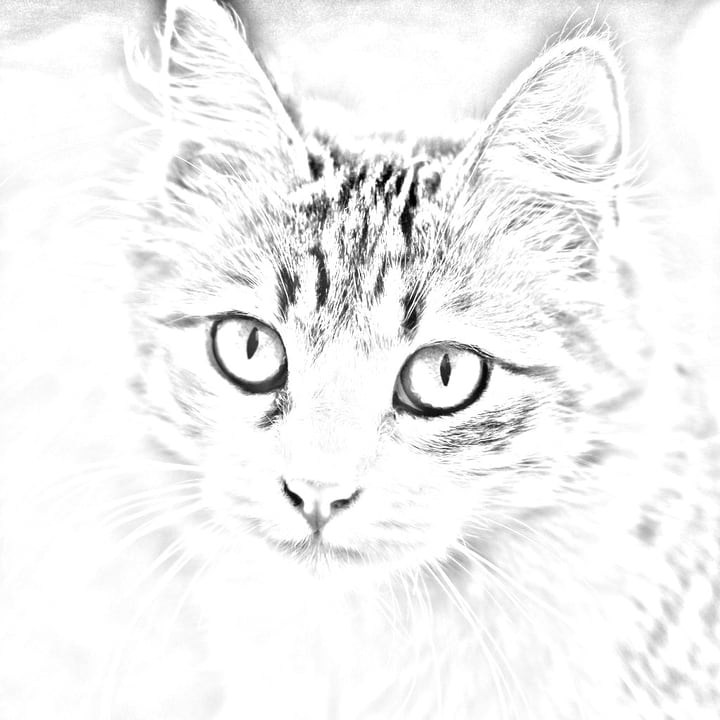
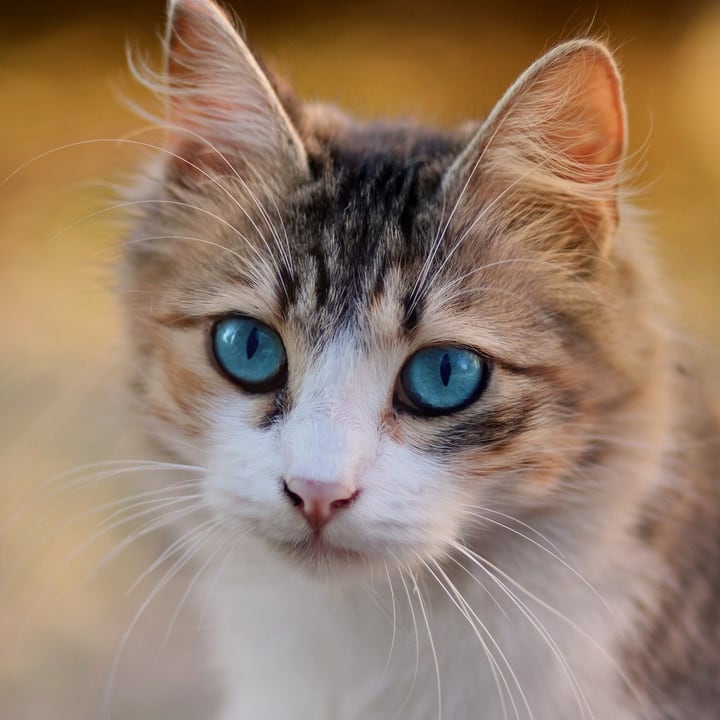

How to turn a photo into a sketch
- Add your photos. Drop one or many anywhere on the page, paste one, or click the box to choose files. Phone photos, including iPhone HEIC, work too.
- Choose a style. Pencil is already chosen. The preview on the left shows the first photo as a sketch straight away, and the arrows let you check the others. Show the original flips between the sketch and the photo.
- Set the lines. Line weight goes from fine to bold, and Darkness from light to dark. The preview changes as you move them.
- Press Make the sketch to make the files at the photos' full size, then download each one, or all of them as a ZIP.
Your original files are never changed. Each sketch is named after its photo with -sketch added, and keeps the photo's own size.
The three styles
| Style | What you get | Best for |
|---|---|---|
| Pencil | Gray lines on white paper, soft where the photo is soft, dark where it has edges. | Portraits, pets, buildings, anything with clear edges. The most natural look. |
| Color pencil | The same pencil drawing over a pale wash of the photo's own colors. | Landscapes, flowers, greeting cards, a hand-colored look. |
| Line drawing | Only the lines, nearly pure black on white, like an ink outline. | Coloring pages, stencils and craft patterns, logos made from a photo. Works best on a plain background. |
What the two sliders do
- Line weight (1 to 100, starting at 35) sets how far the drawing looks around each edge. Low numbers give thin, detailed lines, and high numbers give broad, bold strokes with less fine detail. It is a share of the photo's shorter side, so a small preview and the full-size file look alike: on a photo 1,000 pixels across, weights 1, 35 and 100 look about 4, 18 and 44 pixels around each edge, and on a 12-megapixel photo (3,000 pixels on the short side) the same settings look 12, 53 and 132 pixels around.
- Darkness (0 to 100, starting at 50) is a brightness curve. Higher makes the pencil darker and the lines stronger, and lower makes it paler. In the Line drawing style it also decides how much of the photo becomes line: higher means more of it is inked.
A good habit is to start with the defaults, then move Darkness until the picture reads well, then Line weight to taste. Reset settings brings the defaults back, and your choices are kept in this browser.
Which photos make good sketches?
The sketch is made only from the edges in your photo, so the photo decides the result. We tried five very different photos in all three styles, then measured what changed:
| Photo | What happens | What to do |
|---|---|---|
| Sharp and well lit, with a clear subject (a cat's face, a car, a dog) | A clean, believable pencil drawing. Fur, whiskers, grilles and eyes come out as lines. | Keep the defaults. |
| Blurry | The sketch is fainter: in a test, strongly blurring a photo cut the amount of pencil on the page by about 38 percent. | Use a sharper photo, or raise Darkness. |
| Noisy or grainy | Noise is made of edges, so it becomes speckle: in a test, a noisy photo had about 18 percent more pencil than the clean one. | Take the noise out first with the denoiser. |
| A dark photo or dark background | Flat dark areas come out as white paper, because there is no edge there (in our daisy test, 62 percent of the sketch was almost pure white). | Brighten the photo first, or raise Darkness. |
| A busy background (leaves, grass, crowds) | The background turns into scribble, and in the Line drawing style into black blotches. | Lower Darkness, or cut the subject out first (see below). |
A trick for busy backgrounds
Put the photo through the background remover first and save the PNG. Then sketch the PNG: see-through areas are drawn on white paper, so only the subject is left in the drawing. We checked that a see-through PNG comes out on a white background and not a black one.
How it works
This is not an AI model and it draws nothing that is not in your photo. It is the classic digital pencil-sketch recipe, done by hand in four steps:
- Turn the photo gray, using the standard brightness weights.
- Make a negative of it (white becomes black).
- Blur the negative. The size of the blur is the Line weight.
- Divide the gray photo by what is left of the blurred negative (a step called color dodge):
sketch = gray × 255 ÷ (255 − blurred negative).
Where the photo is flat, the blurred negative matches the photo, and the division gives white. Where there is an edge, the blur smears it and the division gives a dark line. A bigger blur makes broader lines. Color pencil multiplies the sketch with a pale version of the photo's colors (each color mixed 35 percent of the way to white), and Line drawing pushes the sketch through a soft threshold so that only the lines are left.
We checked the code against two references. Against the same maths written separately in Python, 60 sketches (five photos, three styles, four slider settings each) differed by at most 1 level out of 255, which is rounding. Against OpenCV's own Gaussian blur version of the recipe, the average difference was 0.6 levels, and no sketch averaged more than 1.3. The blur here is three box blurs in each direction, which is a close approximation to a Gaussian and is quick whatever the size.
Ideas for using it
- A coloring page from a family photo or a pet: choose Line drawing, raise Darkness a little for fuller outlines, and print it.
- A profile picture or a card in pencil or color pencil.
- A study for drawing practice: the lines show where the edges and shadows are, which helps when you copy a photo by hand.
- Stencils and craft patterns from your own photos.
- For image-model training, a sketch of your own picture is a simple example of line input. If you need the exact line-art, edge or depth maps that ControlNet expects, use ControlNet Maps instead.
Saving and limits
- File type. Same type as the original (JPEG stays JPEG, PNG stays PNG, WebP stays WebP; other types are saved as PNG), or choose JPEG, PNG or WebP yourself. JPEG and WebP have a Quality slider.
- Size. Each sketch has the same width and height as its photo. A photo over 50 megapixels is refused with a message, because the drawing needs about 16 bytes of working memory for every pixel. Phone cameras are well under that.
- Speed. The preview updates as you move a slider. Making the files for a 12-megapixel photo (4,000 × 3,000 pixels) took about 1.1 seconds, including saving, measured on a busy Apple M1 Max.
- Paper. A sketch is always on white paper. Metadata, such as the photo's camera data and location, is not copied to the sketch.
- Many photos at once. The settings apply to all of them, and the finished files can be downloaded as one ZIP.
Privacy
- The sketch is made inside this tab. There is no model to download, and your files on disk are never changed or deleted.
- For what this site collects and keeps, see our privacy policy.
Frequently asked questions
How do I turn a photo into a pencil sketch?
Add the photo, leave the style on Pencil, and press Make the sketch. The preview already shows how it will look. Use the Line weight and Darkness sliders to change the lines, then download the file.
Is this made by AI?
No. It is a standard image recipe: the photo is turned gray, inverted, blurred and divided, and the lines come only from edges that are really in your photo. It does not redraw, invent or stylize anything, which is why it works instantly, with no model to download.
Why is my sketch almost blank?
The photo probably has few clear edges: it may be dark, low in contrast or blurry, and flat areas always come out white. Raise Darkness, lower Line weight for finer lines, or start from a sharper, brighter photo.
How do I get thicker, bolder lines?
Raise Line weight. Higher values look further around each edge, which makes broader strokes. Raising Darkness as well makes them stronger.
Can I make a coloring page from a photo?
Yes: choose Line drawing, and raise Darkness a little if the outlines are too thin. It works best on a photo with a plain background. The lines come from edges, so shapes are not always closed, and a busy background turns into scribble: cut the subject out with the background remover first.
What does Color pencil do?
It keeps the pencil drawing and puts a pale wash of the photo's own colors under it, so you get a hand-colored look. The colors are the photo's, mixed 35 percent toward white.
Will the sketch have the same size as my photo?
Yes. Each sketch has exactly the width and height of its photo, and the line weight is a share of the photo's size, so a small preview and the full-size file look alike.
Can I keep a see-through background?
No. A sketch is drawn on white paper, so see-through areas become white. If you want the sketch on a transparent background, make it with Line drawing and then use Make Background Transparent to turn the white paper see-through.
Is my photo sent anywhere to be edited?
No. The sketch is made in your browser tab. For what the site collects and keeps, see our privacy policy.