.jpg)
How to make a wigglegram from one photo
- Add a photo. Drop it anywhere on the page, paste one, or click the box to choose a file. A phone photo, including iPhone HEIC, works too.
- Wait for the depth. The first time, the page downloads a depth model (27 MB) and your browser keeps it. Measuring the depth of a picture takes about 3.5 seconds on our test computer. Until then the picture shows still.
- Click what should stay still. Usually the subject: a face, a flower, a car. That depth stays in place; everything nearer slides one way and everything farther slides the other way.
- Choose how it wiggles. The number of frames, how strong the swing is, how fast it goes, left and right or up and down, and the size.
- Download the GIF or a video. The GIF loops forever and works in chats, posts and web pages.
Your original file is never changed. The saved files are named after the picture with -wiggle added.
How it works
A wigglegram flips between views of a scene taken from slightly different places. Two views taken a few centimetres apart are all the brain needs to see depth, and flipping between them quickly shows both. We make the views from one photo. A small depth model (Depth Anything V2 Small, Apache-2.0) gives every pixel a nearness, the same shader as the Photo Animator moves a virtual camera sideways, and it slides each pixel by an amount that depends on how near it is relative to the point you clicked. Where something near slides over something far, the near thing covers it correctly. Every color on screen is read from your photo: nothing is drawn that was not there.
The camera's offset in frame k of an n-frame loop is the largest offset times cos(2πk/n). That gives:
| Frames | Order of the views | Starting speed | The look |
|---|---|---|---|
| 2 · classic | right, left | 160 ms a frame | The original wigglegram: two views, flipping. |
| 4 · smooth (the default) | right, middle, left, middle | 110 ms a frame | The usual wiggle: it swings through the middle, so it reads as one smooth motion. |
| 8 · silky | a full swing in eight steps | 70 ms a frame | Closer to a smooth camera move, and a file twice as big. |
What the settings do
| Setting | What it changes |
|---|---|
| Click on the picture | Chooses the depth that stays still. The page shows how near it is, in percent. |
| Strength | How far the camera swings, from 0.2% to 2% of the picture's width at the extremes (0.9% at the default 40). It is the biggest influence on the look, and too much stretches edges. |
| Speed | How long each frame stays on screen, from 30 to 400 milliseconds. A GIF counts in hundredths of a second, so the value is rounded to those. |
| Direction | Left and right (the usual), or up and down. |
| Size | The longer side of the picture: 480, 720 or 1024 pixels. A bigger picture makes a bigger file. |
| Show the depth map | Shows what the model measured: near things light, far things dark. If something is the wrong shade it will slide the wrong amount. |
What we measured
- The subject stays still, the rest slides. On a photo of a retriever against leaves, with the focus clicked on the dog, a patch on the dog moved 1 pixel between the two extreme views while a patch of leaves in the corner moved 13 pixels (of a 720-pixel picture). With the focus clicked on the leaves, the leaves stayed within a pixel and the dog moved 12 pixels in the opposite direction, as it does in a real change of viewpoint.
- Strength is proportional. At strength 15, 40 and 90 the leaves moved 6, 13 and 26 pixels.
- Direction works. With Up and down, the patch moved vertically and not sideways.
- The frames are what the table says. In the 4-frame loop the two middle frames are the same picture, and equal to the photo with no camera offset; in the 8-frame loop frames 1 and 7, 2 and 6, and 3 and 5 are the same.
- The GIF is correct. We wrote the GIF encoder ourselves (the colors, the compression and the file), so we checked it against three independent readers, Pillow, ffmpeg and libvips: each decoded every pixel to exactly the color we meant, with the right delays and an endless loop. From 256 colors the pictures differ from the originals by 2.8 levels out of 255 on average. One palette is made for all the frames and no dithering is used, so the same pixel gets the same color in every frame and nothing shimmers.
File sizes and speed
| GIF of a 4-frame loop | 480 px | 720 px | 1024 px |
|---|---|---|---|
| Size on three test photos | 0.5 to 0.6 MB | 1.1 to 1.3 MB | 2.2 to 2.4 MB |
| 2 frames (classic) / 8 frames (silky) | about half / twice | about half / twice | about half / twice |
Making the GIF takes under a second on our test computer. The video is recorded from the page in real time, so it takes as long as the clip: at least two seconds, rounded up to whole loops. A 2.2 second clip at 720 pixels was about 1.6 MB as MP4. If your browser cannot record MP4 it records WebM, and if it cannot record video the page says so and the GIF still works.
What works well, and what does not
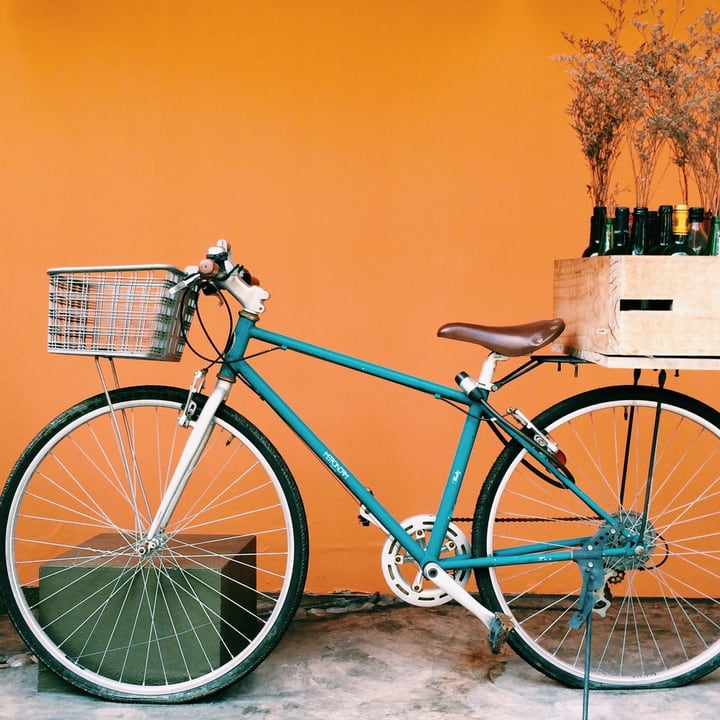
- Works well: a photo with a clear near subject and a far background: a pet in a garden, a bicycle against a wall, a street, a landscape with a foreground. We tried a retriever, a fox, a bicycle and a meadow with trees: all four gave clean views with no visible tearing at the default.
- Depth is an estimate. The model knows how things are arranged, not how far they are in meters. Check Show the depth map if a part moves wrongly. Thin things such as wires and railings, glass, mirrors and water are the usual trouble.
- Strong swings stretch edges. Behind a near edge there are pixels the photo never saw. The page does not invent them: it shows the nearest real pixels, which can look smeared when the swing is large. Lower the Strength, or choose a photo with a plainer background.
- A flat picture has no depth to show. A photo of a wall, a screenshot or a flat drawing gives little motion, because there is little for the model to measure. A drawing with a foreground and a background can still work.
- This is not a true 3D photo. A real wigglegram from a multi-lens camera has the real second view, including what is hidden behind things. This is a simulation from one picture, which is why it is best kept gentle.
Size and limits
- Working size. The photo is worked on at 480, 720 or 1024 pixels on its longer side, whichever you choose, and a bigger picture is made smaller. The depth model looks at a version of about 518 pixels on the shorter side.
- One picture at a time. The point that stays still is chosen on a particular picture.
- See-through pictures are put on white first.
- WebGL 2. The page needs a browser that can draw WebGL 2 graphics (current Chrome, Edge, Safari and Firefox) and says so if not.
Where the work happens
- Everything runs inside this tab. The page downloads the depth model from Hugging Face the first time you use it: Depth Anything V2 Small (Apache-2.0), the same file as the Photo Animator uses. See Credits. Your file on disk is never changed or deleted.
- For what this site collects and keeps, see our privacy policy.
Frequently asked questions
How do I make a wigglegram from a single photo?
Add the photo, wait for the depth step, click on the subject so that it stays still, and press Download GIF. The page swings a virtual camera left and right using a depth map of your photo, so near things and far things slide against each other.
Is this a real 3D photo?
No. A real wigglegram comes from two or three photos taken from slightly different places. This page makes the views from one photo with a depth model, so it is a simulation. It looks best when it is gentle.
Which setting should I use for social media?
The default 4 frames at 720 pixels is a good start: a GIF of about 1 MB. Use 480 pixels for a smaller file, or 2 frames for half the size. If a site limits the size of a GIF, use the video download instead.
Why does the edge of my subject look smeared?
When the camera moves, a near subject uncovers pixels behind it that the photo never contained. The page does not invent them; it shows the nearest real pixels, which looks smeared when the swing is large. Lower the Strength.
Why does the wrong part of my picture move?
The depth model gets some things wrong: thin objects, glass and reflections. Tick Show the depth map to see what it measured, and click a different point to choose what stays still.
What is the difference between this and the Photo Animator?
They use the same depth model and the same renderer. The Photo Animator moves the camera in a slow, smooth path (float, sway, orbit, push in) and saves a video. This page flips between a few fixed views, the classic wigglegram look, lets you choose the point that stays still, and saves a GIF.
Can I make the GIF smaller?
Yes: choose a smaller size (480 pixels), fewer frames (2 or 4), or use the video download. A GIF has to store every frame as a picture of up to 256 colors, which is why it is bigger than a video of the same loop.
Is my photo sent anywhere to be processed?
The depth and the loop are made in your browser tab; the depth model is downloaded to it. For what the site collects and keeps, see our privacy policy.