How to blur the background of a photo
The short answer
A background is blurred by a camera when the lens is wide open, the subject is close, the background is far behind it, and the lens is long or the sensor large. If your photo did not get that, you can add blur afterward in two ways: by depth, where the blur grows with distance from what is in focus (it looks like a lens), or by subject, where everything except the subject gets the same blur (it looks like portrait mode). Depth blur looks more natural on scenes; subject blur is simpler on a portrait. Both go wrong at thin edges like hair and wires.
A sharp subject against a soft, creamy background is the look people mean by "a professional photo". It draws the eye to one thing and hides a messy room. You can get it with a camera, with a phone's portrait mode, or afterward on a picture you already have. This guide explains why it happens, so that you can both shoot for it and judge the fake ones.
Why a lens blurs the background
A lens focuses on one distance. Things nearer or farther are drawn as small discs instead of points, and the farther from the focus, the bigger the disc. The size of those discs depends on four things:
- The aperture. A wide-open lens (a small f-number such as f/1.8) makes big discs. Closing it down (f/11) makes small ones, so more of the picture looks sharp.
- The distance to the subject. The closer you stand, the more the background blurs.
- The distance behind the subject. A background a long way behind blurs much more than a wall right behind the person.
- The focal length and the sensor. A longer lens and a larger sensor blur more. This is why a phone with a tiny sensor needs software to imitate what a bigger camera does by itself.
The practical advice: step close to the subject, move the subject away from the background, zoom in a little, and open the aperture. If you did all that, you may not need to fake anything.
When you need to add it afterward
- The picture was taken on a phone without portrait mode, or with it off.
- The background was too close, or the aperture was small, because the light was bright.
- You want to tame a busy background in a photo you cannot retake.
Two ways to add the blur
| By depth (lens blur) | By subject (portrait look) | |
|---|---|---|
| How | A depth model estimates how far each part of the picture is. You click what stays in focus, and the blur grows with distance from it, in front and behind. | A model finds the main subject. It stays sharp, and everything else gets the same blur. |
| Looks like | A real lens with a wide aperture: a gradual change, a sharp plane. | Phone portrait mode: a flat cut-out against a blurred wall. |
| Good for | Landscapes, streets, a subject at an angle, a floor that recedes. | One person, pet or product against a background. |
| Goes wrong at | Thin things, glass and reflections (the depth estimate is rough there); a subject that is long in depth, such as a car seen from an angle, is partly blurred. | Fine edges the subject model misses (cables, hair strands); the blur has no sense of distance, so a floor right next to the subject is as blurred as the far wall. |
Here is the depth method on a real photo. One click on the car chose what stays sharp:
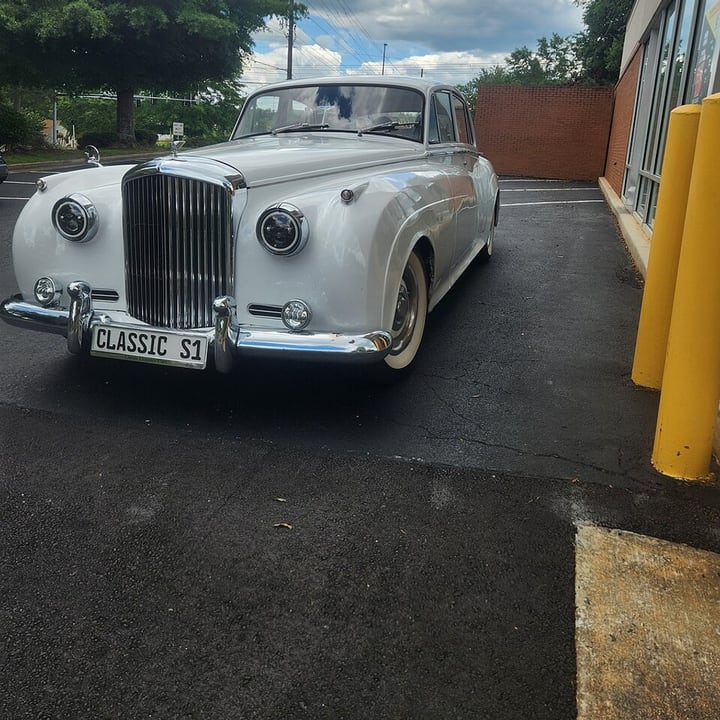
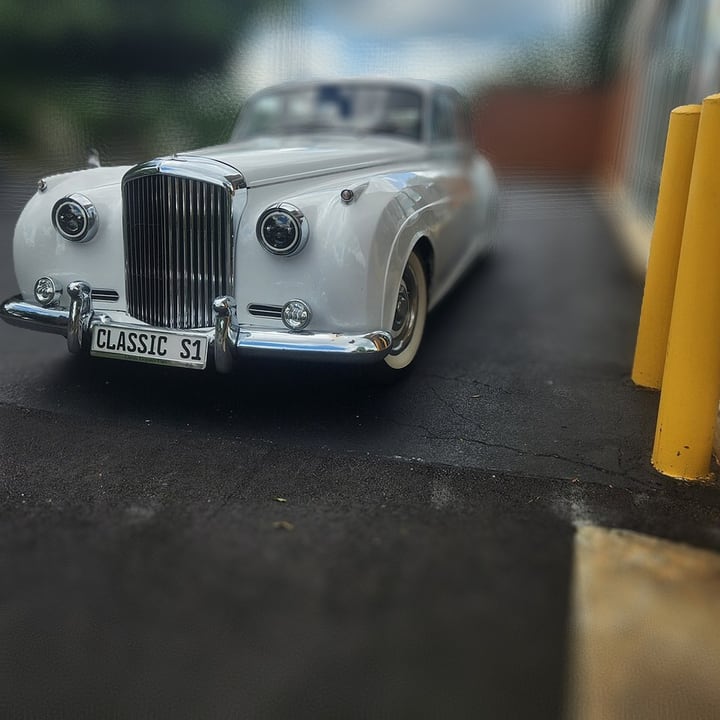

Our Background Blur does both in your browser, with a live preview of the real result. It also models two things that make a fake look fake or real:
- Sharp stays sharp. A blurred background must not smear into the sharp subject, and a blurred foreground should still spread over what is behind it. The tool lets a pixel's blur count only where that pixel's own blur disc actually reaches.
- Bright lights bloom. In a real photo a small bright light far behind the subject becomes a soft disc, a six-blade lens makes it a hexagon. The Bright spots setting gives bright pixels extra weight so lights in the background bloom instead of being averaged away.
How to get a believable result
- Click the right place. In depth mode the focus is the depth under your click. Click the middle of the part that should be sharpest, usually the eyes of a face or the front of an object.
- Widen the sharp zone for a deep subject. A car at an angle has its front and back at different distances. Widen the sharp zone so that most of it stays sharp, or choose the subject method.
- Do not overdo it. A very strong blur on a picture with a lot of detail looks like a smudge. The blur radius in the tool tops out at 6% of the shorter side. A moderate amount reads as a lens and a heavy one reads as a filter.
- Check the edges at full size. Look at hair, glasses frames and the line where the subject meets the background. A thin halo of sharp background around a subject is the usual sign that the mask was a little off. Trimming the edge in the subject mode, or a slightly wider sharp zone in depth mode, usually fixes it.
- Look at the depth map. If a part of the picture blurs wrongly, the depth view shows the cause: a wrong shade means a wrong blur.
- Keep the original. Blur cannot be undone from the saved file. The tool never changes your original, and holding "Hold to see the original" shows the picture without the blur.
What to use it on, and what not
- Good: a pet or person against trees, a car in a lot, a flower in a garden, a street with a person in the foreground. Landscapes get a tilt-shift look.
- Poor: a subject with lots of thin parts (a bicycle's spokes, a wire fence, a bush), a picture with glass or mirrors, and a picture where the subject and background are at the same distance (a wall).
- Not a way to hide things. Blur can be reversed in part, and a face or number plate behind a light blur may still be readable. To hide a face or text for real, use Blur Image with a strong setting, or cover the area with a solid block.
Is it a lie to fake a blurred background?
It is normal: phones do it by default and editors have done it for years. The honest line is context. For an ordinary photo it is a style choice. For a product listing, a news picture or a document, it can hide something the viewer needs, so do not blur away facts. And a fake blur is a simulation of a lens, not an f-number: choose the amount for the look you want, not to match a lens.
Blur the background of a photo like a camera lens: click what should stay sharp, or let the tool keep the subject sharp. Round or six-blade bokeh, bright spots, live preview. It runs in your browser. Open the Background Blur.
Frequently asked questions
Why is my background not blurry?
Usually the aperture was small, the background was close to the subject, or the sensor was small, as on a phone. Stand closer, move the subject away from the background, zoom in a little and open the aperture, or add the blur afterward.
What is the difference between lens blur and portrait mode?
Lens blur grows with distance, so near and far things blur by different amounts, like a real lens. Portrait mode keeps the subject sharp and blurs everything else the same. The first looks more natural on scenes; the second is simpler for one person against a background.
Why does the edge of my subject look strange?
Fine edges such as hair and wires are hard for both the depth model and the subject model, so a thin ring of sharp background can remain. Widen the sharp zone a little in depth mode, trim the edge in subject mode, and do not use a very strong blur.
Can I blur a face so that nobody can see it?
Not with a soft background blur. Use a strong blur or a solid block on the face, because a light blur can be partly reversed. Our Blur Image tool is made for that.
Does adding blur make the photo smaller or lower quality?
The parts that stay sharp keep every pixel of the original. The blurred parts are made at up to 1600 pixels and enlarged, which is fine for a blur. The file size depends on the format you save in.