How to scan and restore old photos
The short answer
Most of the quality of a restored photo is decided before any software is used: scan the print flat, clean and large (600 dpi for small prints), keep an untouched copy, and only then fix the problems in this order: marks, grain, faded tone, color, size. In our measurements every step helped, and a strong dust filter did more harm than good on fine texture. Torn corners and blurry faces are not things a filter can repair.
A shoebox of old prints is usually a pile of three different problems: the prints themselves have aged (faded, yellowed, scratched, dusty), the scans of them add new faults (glare, skew, a soft focus), and some photos were never sharp or large to begin with. Software can help with the first, you can avoid the second, and nothing can fix the third. This guide takes them in the order you will meet them.
Step 1: scan the print well
Every later step works on what the scan captured, so this is the cheapest place to gain quality.
- Use a flatbed scanner if you have one. Wipe the glass first: a hair on the glass becomes a line on every scan. Place the print square to the edge so that you do not have to straighten it later (straightening resamples the picture).
- Resolution. 300 dpi gives you a copy at the print's own size. For a small print, or if you may want to enlarge it, scan at 600 dpi. A 4 × 6 inch print at 600 dpi is 2400 × 3600 pixels, which is more than most screens can show and plenty for a print of the same size or larger.
- Turn automatic fixing off. Scanner software often adds its own sharpening and contrast, which makes later grain and dust removal harder. A flat, plain scan is easier to work with.
- No scanner? Photograph the print: in even daylight near a window (no flash, which glares on glossy paper), the camera parallel to the print, and the whole print in the frame. Look for reflections of the window or yourself in the surface before you press the button. A phone photo works for a record of the picture; a scanner works better for fine grain.
- Save a master. Keep one untouched scan as a PNG or TIFF, which lose nothing, and work on copies. A JPEG that is re-saved after every edit loses quality each time. Our guide on PNG, JPG and WebP explains the difference.
Step 2: look before you fix
Zoom in to 100% and write down what you see. Each problem has a different cure and some cures make other problems worse:
| What you see | What it is | What helps |
|---|---|---|
| White and black specks, thin hairlines | Dust and scratches, on the print or on the scanner glass | Re-scan after cleaning the glass first. Then a dust filter for what is left. |
| Fine, even sand-like texture | Film grain or scanner noise | Noise removal, gently. |
| Blocky squares and halos around edges | JPEG compression, from an earlier digital copy | Noise removal helps some. A fresh scan of the print is better. |
| Gray blacks, flat contrast, a yellow or brown cast | Fading and aging of the print | Tone correction. Often the most visible change. |
| Folds, cracks, tears, missing corners, stains | Physical damage: big gaps | Painting out the damage, one area at a time. Not a filter. |
| Soft focus, blurry faces | The picture was never sharp | Nothing brings back detail that was not captured. Enlarging adds texture, not truth. |
| Black and white | It is what it is | Color can be added, but it is a guess. |
Step 3: fix in this order
The order matters, because each step changes what the next one sees:
- Marks first. Remove dust and scratches before anything else, so that the noise remover does not treat them as detail to keep.
- Grain next. Remove noise before you stretch the tone, because stretching makes noise stronger.
- Tone. Bring back the darks and lights. The black and white points come from the photo's own histogram, and for a color print each color channel gets its own points, which removes a color cast. A sepia print becomes neutral gray when you do this, so decide whether you want to keep the tint.
- Color. Only for a black and white photograph, and last of the corrections, because the model guesses better from a clean picture.
- Size. Enlarge last, so that every earlier step runs on fewer pixels and the enlarging model starts from a clean picture.
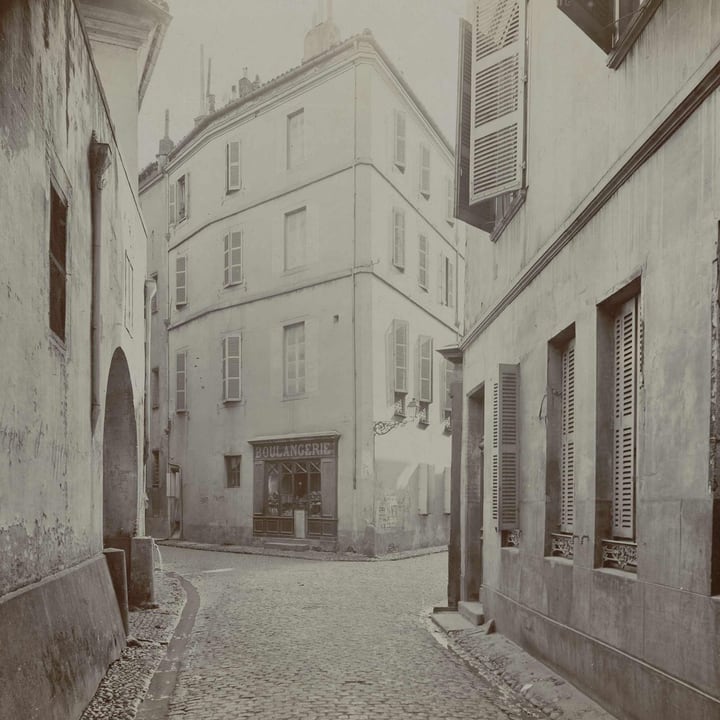
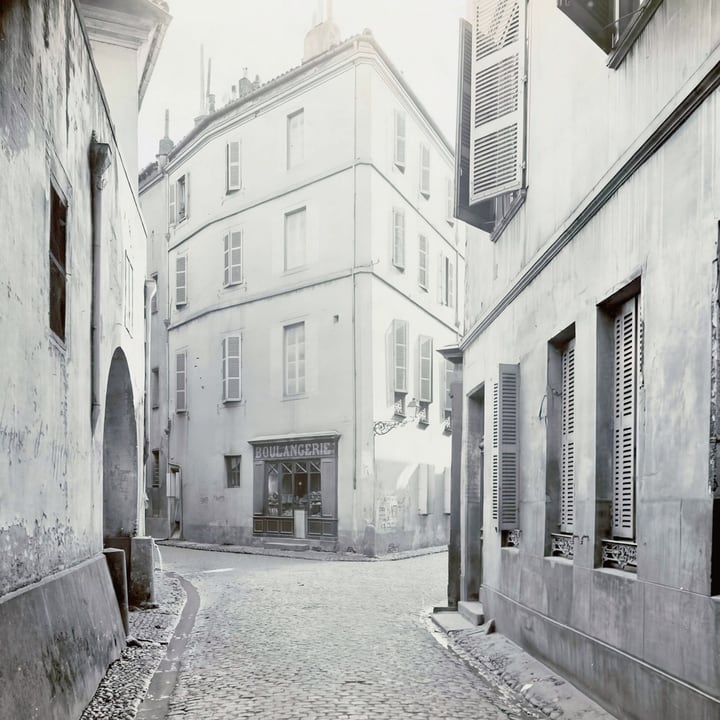
Our Photo Restoration page runs exactly these five steps on one photo or a folder of scans, in your browser, and compares the result with your original. Here is what it does, at its default settings, to a real 1908 print from a public archive:

What each step is worth: our measurements
To measure how much a step helps, you need the clean picture. So we made our own "old photos": three clean pictures, damaged in three ways (grain plus heavy JPEG compression, 260 specks and three thin scratches, and a faded tone), and we measured how close each result was to the clean original (PSNR, in decibels; higher is closer, and 3 dB is a clearly visible difference).
- Every step helped on every picture: dust removal by 4 to 11 dB, noise removal by 2 to 7.5 dB, and fade correction by 3 to 12 dB. Each was tested on a picture damaged in that one way, so the numbers cannot be ranked against each other.
- Fade correction gained the most on the cat (almost 12 dB), and tone is also what makes a print look old at first glance: a flat, gray picture reads as faded however sharp it is.
- Fine texture loses a little. Fur gained the least from noise removal, because a noise remover smooths some real texture too.
- More is not better. A dust filter at 75% made one of our photos worse than the damaged original (26.3 dB against 27.6), because it flattened fur that it took for specks. The default strength is gentle for that reason: raise it only for a photo with many marks and little fine texture.
These are our own damaged photos, not scans of real prints, and a number cannot tell you whether a face looks right. Use the measurements as a guide to which step to try first and how far to push it, and look at every result.
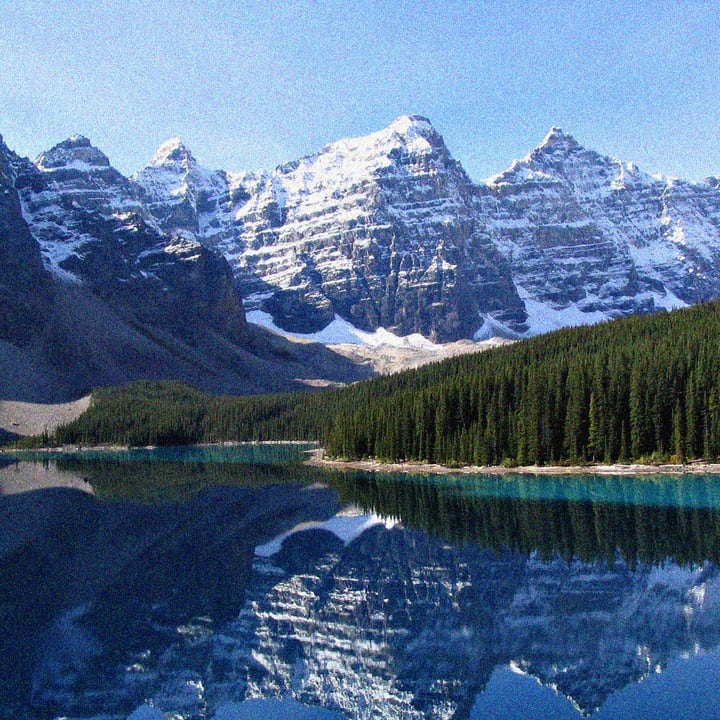
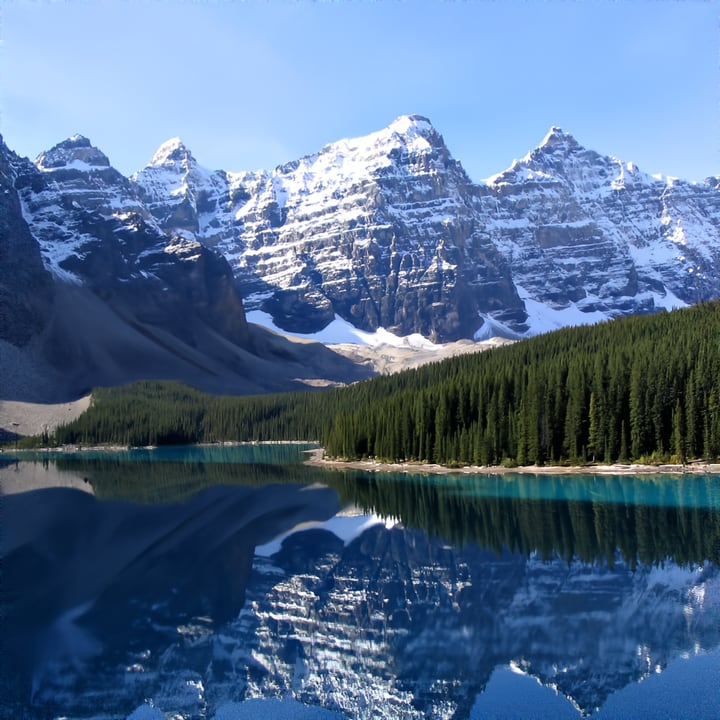
For grain and noise specifically, this is the noise step on its own, on a photo with heavy computer-made grain:

What no filter can do
- Physical damage. A filter cannot rebuild a torn corner or a crack across a face. Paint the damaged area out with Remove Object first, then restore the photo. The result is a plausible guess, not a recovery.
- Blurry faces. Enlarging and sharpening tools add texture. They cannot add the true detail of a face, and a face that looks sharper after processing is less like the person than the original was. Be careful with family photos: keep the original beside the restored version.
- True colors. A model that adds color to a black and white picture decides that a sky is blue and grass is green from what it has seen. Clothes, cars and walls can come out any color. If you know the real colors from a family story or a color photo of the same thing, trust that over the model.
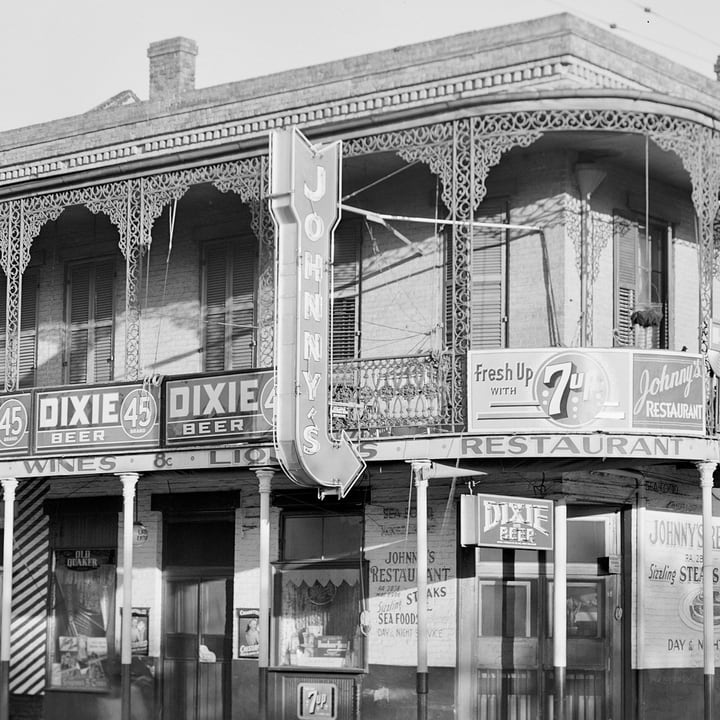
This is what adding color to a 1940 black and white photo looks like. The colors are a guess:


Keep it safe
- Keep the untouched scan, the restored version and, if you can, the print itself. A restoration is an interpretation and a better method may come along.
- Write on a copy what you changed (for example "dust removed, tone corrected, color added by software"), especially if it will be shared. A colorized photo can mislead later viewers about a past event.
- Photos taken by your family or by a studio belong to someone, even when old. Restoring a print does not change who owns it.
- If you use our page, your original files are never changed, and the work runs in your browser; for what this site collects, read the privacy policy.
A short plan for a box of prints
- Clean the scanner glass and scan every print flat at 300 dpi (600 for the small ones) into PNG or TIFF.
- Sort them: fine as they are, tone only, needs dust and grain work, needs painting out, black and white you may want in color.
- Run the batch through Photo Restoration with the steps each group needs, starting with one photo to check the strength.
- Paint out serious damage with Remove Object before the batch, not after.
- Name each file with the date, the place and the people, so that the photo is worth more than its pixels.
Restore old scanned photos in one go: clean dust and scratches, take out grain, fix faded tone, add color to black and white, and enlarge. The models run in your browser. It runs in your browser. Open the Photo Restoration.
Frequently asked questions
What dpi should I scan old photos at?
300 dpi is enough for a copy at the print's own size. Use 600 dpi for small prints or if you may want to enlarge them. A 4 × 6 inch print at 600 dpi is 2400 × 3600 pixels.
Should I fix dust or grain first?
Dust and scratches first, then grain, then tone. A noise remover may keep a speck as detail if it is still there, and stretching the tone makes noise stronger, so noise goes before tone.
Can software fix a torn photo?
Not with a filter. A tear or a missing corner is a gap that has to be painted over with a fill-in tool. The result is a guess at what was there, so keep the original.
Is it accurate to add color to a black and white photo?
No. The colors are a model's guess from what it has seen. Skies and grass are usually right; clothes and objects can be any color. Trust what you know over what the model drew.
Why did my sepia photo turn gray?
Tone correction removes a color cast, and a sepia tint counts as one. Keep the tint on if you want the warm look.
Should I save restored photos as JPG or PNG?
Keep the master scan as PNG or TIFF. For the restored copy, PNG keeps every pixel; a JPG at a high quality is smaller and fine for sharing, but do not re-save it again and again.