
How to restore an old photo
- Add your scans. Drop one or many anywhere on the page, paste one, or click the box to choose files. A scan or a phone photo of a print works, including iPhone HEIC.
- Choose the steps. Dust and scratches, noise and grain, and faded tone are on by default. Color and enlarging are off, because they are only right for some photos. Each step has its own strength.
- Press Restore the photo. The first time, the page downloads the models it needs (73 MB for noise, 129 MB for color, 4.6 MB for enlarging) and your browser keeps them. Each step reports its progress, and Stop ends the job.
- Compare and save. Drag the slider to compare the original with the result, then download each photo, or all of them as a ZIP.
Your original files are never changed. Each result is named after its photo with -restored added.
The five steps
The order is fixed because each step makes the next one's job easier: marks are removed before the noise model sees them, noise is removed before the tone is stretched (stretching would make it stronger), color is added to a clean picture, and enlarging comes last.
| Step | What it does | How |
|---|---|---|
| 1 · Dust and scratches | Removes bright and dark specks and thin scratches, up to about one pixel wide (or two, with Larger). | Plain maths. Each pixel is compared with the median of its 3 × 3 neighbours, and when it differs by more than a threshold it is pulled toward that median. A stronger setting uses a smaller threshold. |
| 2 · Noise and grain | Takes out film grain, scanner noise and JPEG blockiness. | The SCUNet model, the one in Denoise Image, mixed with the original by the Amount. |
| 3 · Faded tone | Brings back the darks and lights of a faded or yellowed print and removes a color cast. | Plain maths. The black and white points come from the photo's own histogram (the darkest and lightest half percent), and a gamma moves the average brightness toward the middle. A color photo gets its own points for each color channel, which removes a cast; a black and white or sepia print shares one pair of points, so a tint is kept if you tick Keep the tint. |
| 4 · Add color | For a black and white photo: guesses the colors. | The DDColor model, the one in Colorize Photo. A photo that already has color is turned gray first. |
| 5 · Enlarge | Makes a small scan 2 or 4 times larger, with added detail. | The Real-ESRGAN model, the one in the Image Upscaler. |
You can also use the three model steps alone, with their own pages. This page is for running them together on a folder of scans, with the plain steps added.
What we measured
To know how much each step helps, we need the clean picture, so we made our own old photos: three clean pictures (a lighthouse, a retriever and a cat), shrunk to 640 × 480 and damaged in three ways: film grain plus heavy JPEG compression, dust and scratches (260 specks and three thin scratches), and a faded tone (lifted blacks, flatter contrast). We ran the real page on them and measured how close the result is to the clean picture, as PSNR in decibels (higher is closer; 3 dB is a clearly visible difference).
| What was done | Lighthouse | Retriever | Cat |
|---|---|---|---|
| Dust and scratches, at the default strength 20 | 29.6 → 37.6 dB | 28.5 → 39.9 dB | 28.2 → 32.6 dB |
| Noise and grain, 100% | 29.2 → 33.8 dB | 30.5 → 38.0 dB | 26.9 → 29.0 dB |
| Faded tone, 80% | 18.7 → 21.9 dB | 20.0 → 29.6 dB | 20.6 → 32.4 dB |
| All three together on the photo with all three kinds of damage | 18.2 → 21.5 dB | 19.4 → 30.3 dB | 19.4 → 25.6 dB |
| The same, enlarged 2 × (against the clean picture at double size); a plain 2 × enlargement of the old photo scores | 20.3 dB (plain: 18.2) | 29.0 dB (plain: 19.5) | 20.9 dB (plain: 19.1) |
Three things to take from it. First, every step helped on every picture (each was tested on a picture damaged in that one way, so the gains cannot be ranked against each other). Second, how much depends on the picture: the cat's fur is fine texture, which noise removal smooths a little and which dust removal can mistake for specks, so it gains the least. Third, the strengths matter: on a clean photo, the dust step at 20% changed 1.0% of the cat's pixels and 0.1% of the lighthouse's, but at 75% it made the cat's damaged picture worse than the damaged original (26.3 dB against 27.6), because it flattened the fur. The default is deliberately gentle. Raise it only for photos with a lot of marks and little fine texture.
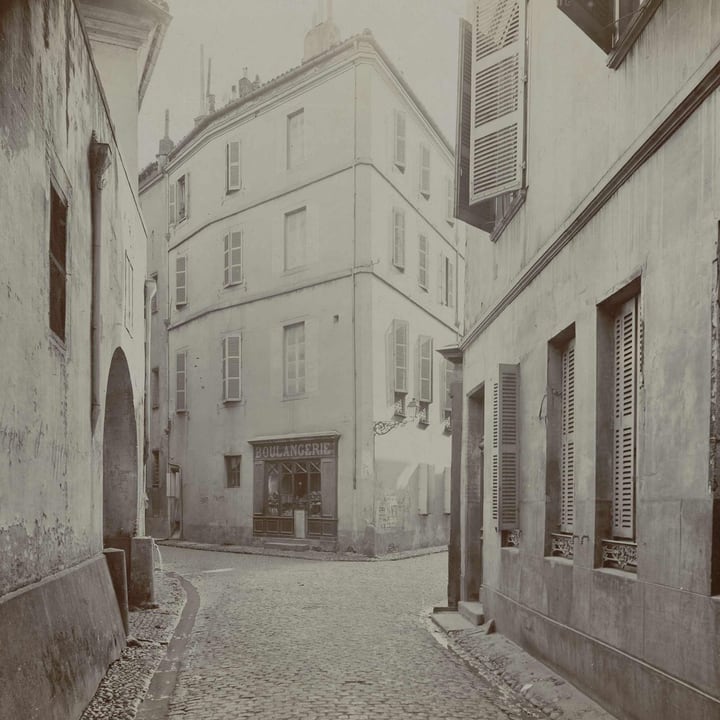
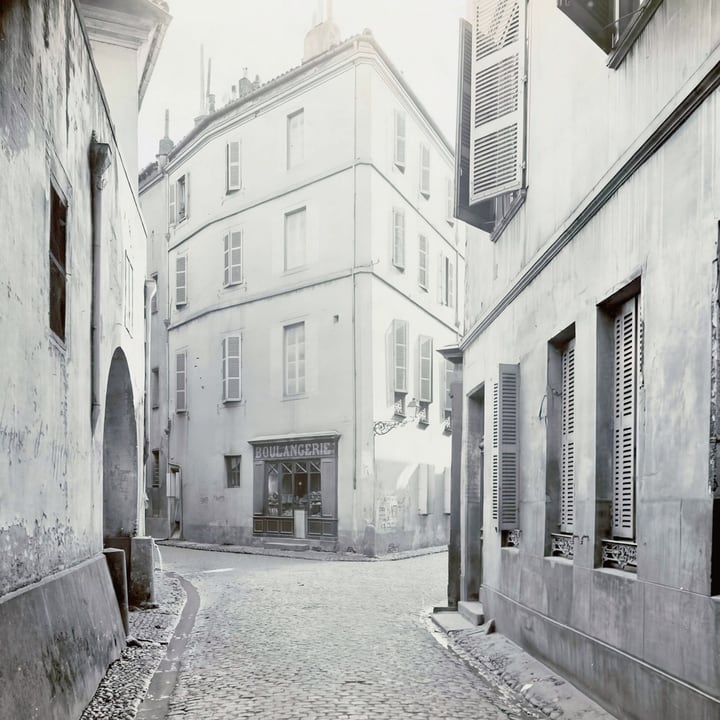
These are our own damaged photos, not scans of real prints: real damage is less regular, and nothing here measures how a person judges a face. We also tried the page on a real 1908 print from a public archive (the picture above): it came out cleaner, in neutral black and white, with a stronger contrast and the grain softened.
What it cannot do
- It does not repair faces. This page has no face restoration model. One well-known model of that kind (CodeFormer) is licensed for non-commercial use only, which a site with ads cannot use, and we have not added another. Blurry faces stay blurry; the enlarging step adds texture, not identity.
- It does not fill in tears, cracks, folds or missing corners. The dust step removes marks up to about two pixels wide. For a big mark, paint it out with Remove Object first, then restore.
- The colors are a guess. The model decides that grass is green and a sky is blue because it has seen many pictures, not because it knows. On the 1908 street scene it added hardly any color at all. Check the result against what you know of the picture.
- The tone step neutralizes a cast. A sepia print becomes neutral gray unless you tick Keep the tint. On a photo that is not faded, switch the step off or lower its Amount: it stretches whatever tones the photo has.
- It invents nothing on purpose, but the models do add texture. The enlarging model draws detail that was not in the scan. Do not use it where the exact pixels matter.
Size, speed and limits
- Time depends on your computer. The noise step uses the graphics chip when the browser has one: about 1.5 seconds per 448 × 448 piece on our test laptop. On the processor it is about 20 seconds per piece, so a 3000 × 2000 scan (35 pieces) takes about twelve minutes. The page tells you which one you have. A 640 × 480 photo went through the three default steps in about six seconds on the graphics chip, and a 1024 × 1024 scan in about 13.
- Enlarging is slow. It runs on the processor, one 192-pixel piece at a time, about 2.8 seconds each: 2 × enlarging a 640 × 480 photo (12 pieces) took about 33 seconds. A big scan can take many minutes, and the page says how far along it is.
- The plain steps are fast. The tone step takes about 0.14 seconds for 12 megapixels; one pass of the dust step about 2.4 seconds.
- Big pictures. A picture over 24 megapixels is refused with a message (make it smaller first). An enlarged picture over 16,384 pixels on a side, or 64 megapixels in all, is enlarged less than you asked, and the result line says so.
- See-through pictures are put on white first.
Where the work happens
- Everything runs inside this tab. The page downloads the models from Hugging Face the first time you use a step: SCUNet (Apache-2.0), DDColor (Apache-2.0) and Real-ESRGAN (BSD-3-Clause). They are the same files as on the Denoise Image, Colorize Photo and Image Upscaler pages, so if you used those, your browser already has them. See Credits.
- Your files on disk are never changed or deleted. For what this site collects and keeps, see our privacy policy.
Frequently asked questions
How do I restore an old photograph for free?
Scan it, or photograph it in even light, add the picture to this page and press Restore the photo. The default steps clean dust and scratches, remove grain and fix a faded tone. Switch on Add color for a black and white photo and Enlarge for a small scan.
Can it fix a torn or cracked photo?
Not by itself. The dust step removes specks and scratches up to about two pixels wide. A tear, a crack or a missing corner is a big gap that has to be painted over: use Remove Object on it first, then restore the photo.
Does it make blurry faces sharp?
No. This page does not include a face restoration model, and the enlarging step adds general texture, not the true details of a face. It will not turn a blurry face into a sharp one.
Are the colors accurate?
No. The color model guesses from what it has seen, so a sky is likely to be blue and grass green, and clothes can be any color. On the 1908 street photo it added almost none. Treat the result as an illustration, not a record.
Why did my sepia photo turn gray?
The tone step removes a color cast, and a sepia tint is one. Tick Keep the tint of the print to leave it, or switch the tone step off.
Why does it take so long?
The models run in your browser, and the noise and enlarging steps are heavy. The noise step is fast on a graphics chip (about 1.5 seconds per piece of a picture) and slow on the processor (about 20 seconds). Enlarging always uses the processor. Switch off a step you do not need, or use smaller scans.
What is the right order?
The page fixes it: dust, noise, tone, color, enlarging. Marks go first so the noise model does not keep them, noise goes before the tone is stretched, color is added to a clean picture, and enlarging is last so that it works on a clean picture and the other steps run on fewer pixels.
Can I restore many photos at once?
Yes. Add as many as you like and press the button once. They are done one after another, and you can download each one or all of them as a ZIP. A folder of scans can take a long time on the processor, so try one first.
Is my photo sent anywhere to be restored?
The work is done in your browser tab; the models are downloaded to it. For what the site collects and keeps, see our privacy policy.