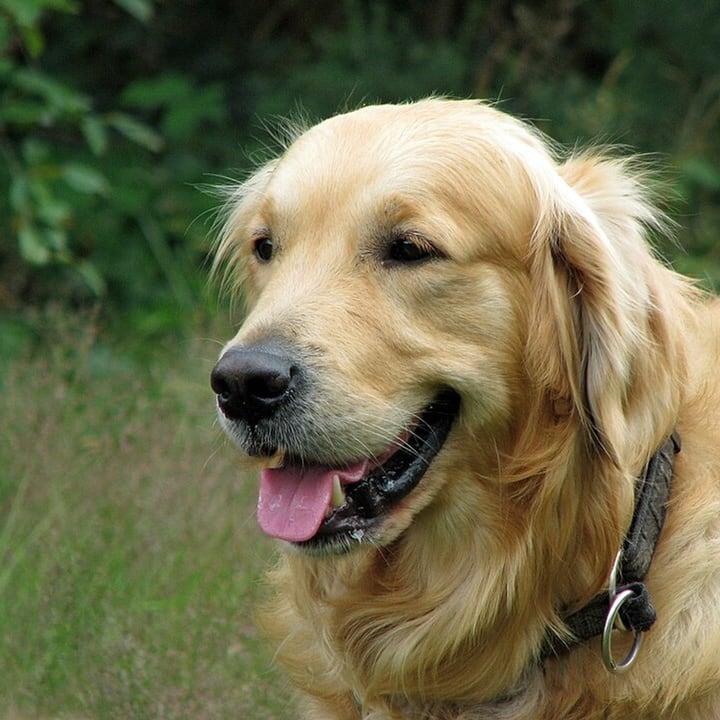
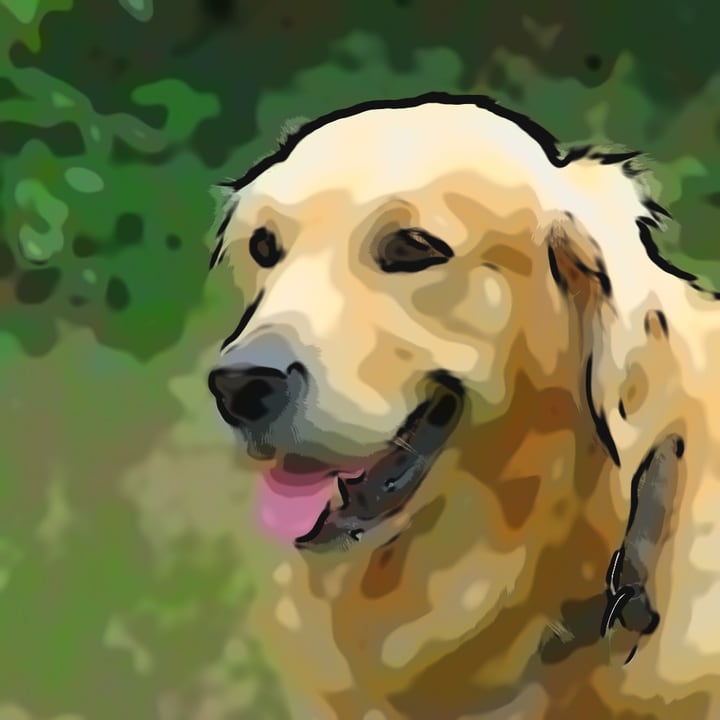

How to turn a photo into a cartoon
- Add your photos. Drop one or many anywhere on the page, paste one, or click the box to choose files. Phone photos, including iPhone HEIC, work too.
- Choose a look. Cartoon is already chosen. The preview shows the first photo straight away, and the arrows let you check the others. Show the original flips between the two.
- Adjust it. The six sliders start at the look's own values. Choosing a look again puts them back.
- Press Make the cartoon to make the files at the photos' full size, then download each one, or all of them as a ZIP.
Your original files are never changed. Each result is named after its photo with -cartoon added and keeps the photo's own size.
The three looks
| Look | What you get | Settings it starts with |
|---|---|---|
| Cartoon | Smooth, bright colors in a handful of tones with clear dark outlines. The most natural of the three. | Smoothing 40, 8 tone steps, color boost 55, outlines 65, line weight 40, no dots |
| Cel animation | Flat colors in only a few tones and thinner, cleaner lines, like a frame from a hand-painted animation. | Smoothing 70, 5 tone steps, color boost 45, outlines 50, line weight 20, no dots |
| Comic book | A few strong tones, bold black lines and a grid of halftone dots that grow in the shadows, like a printed comic. | Smoothing 30, 5 tone steps, color boost 75, outlines 90, line weight 55, dots 70 |
What the sliders do
| Slider | What it changes |
|---|---|
| Smoothing | How much texture melts away before the colors are flattened. Low keeps fur, grain and fabric; high leaves large, calm shapes. Strong edges, such as the outline of a face or a roof against the sky, stay sharp at any setting. |
| Tone steps | How many levels of light and dark each color keeps, from 2 to 12. Few steps give flat poster-like areas; many steps give smoother shading. |
| Color boost | How vivid the colors are, from a little muted (0) to very vivid (100). The middle, 50, is about 1.2 times the original saturation. |
| Outlines | How many lines are drawn. At 0 only the very strongest edges get a line; at 100 even faint edges do. |
| Line weight | How thick the lines are, from fine to bold. Thicker lines are also calmer: small wobbles in an edge disappear. |
| Halftone dots | A grid of ink dots, turned 45 degrees, that appears in the shadows and grows toward black, as in a printed comic. At 0 there are none. |
How it works, and what it is not
A cartoon is flat color with ink lines, so the recipe has three parts, all ordinary image processing:
- Flatten. An edge-preserving smoothing (a "guided filter" that uses the brightness of the picture as its guide) is applied twice, the second time with half the radius. Texture, skin pores and grass blades melt away, but a real edge stays sharp.
- Tones. The brightness is cut into the number of steps you chose, with a soft edge between steps, and the colors keep their hue and get more saturated. The darkest step is not black and the lightest is not pure white: black is the job of the lines.
- Ink. A line is drawn wherever the flattened picture still has a strong edge (a Sobel filter on a blurred copy; a bigger blur gives thicker, calmer lines). The comic look draws its halftone dots before the lines.
This is not the kind of cartoon filter that sends a picture through a trained model and paints a new drawing. Nothing here invents a face, redraws an eye or changes the shape of anything. The upside is that it is instant, never changes who or what is in the picture, and runs without a download. The downside is that it cannot make a photo look like the work of a particular artist or studio: it makes it look like a flattened, outlined photo. We checked the whole process against a separate implementation in Python, step by step: the results agree to within one level of 255 on every value we compared.
What works well, and what does not
We tried it on a car at a show, a bicycle against an orange wall, two cats, two retrievers and a red fox. The result depends mostly on what is in the photo:
- Works well: pictures with clear shapes and smooth surfaces, such as cars, buildings, products, furniture, signs, toys and bold graphics. The car came out looking like a drawing in all three looks. A single animal against a calm background works too: the red fox and the two dogs came out as drawn animals, with the eyes, the nose and the outline of the head in ink.
- Mixed: animals and portraits in close-up. The eyes and the outline of the cats came out well, but their fur melted into irregular blotches, because fur is fine texture and the tone steps cut it into patches. Raise Tone steps and lower Smoothing to keep more of it.
- Weak: busy scenes with many thin things, such as foliage, crowds, grass and wire. The dried plants behind the bicycle turned into a blur, and thin spokes can leave pale streaks. Crowds and faces far from the camera become hard to read.
For a pencil drawing instead, see Photo to Sketch. To keep only the subject and drop a busy background first, use the Background Remover and put the result on a plain color, or turn a flat-color cartoon into a vector with Image to SVG.
Size, speed and limits
- Speed. The preview of a 900-pixel picture takes about 0.2 seconds. A 12-megapixel photo takes about four seconds from pressing the button to the saved file on a busy laptop. The page keeps responding while it works and says which part of a big picture it is on. We did not measure phones.
- The same look at any size. Lines, smoothing and dots are all shares of the picture, and the strength of an edge is scaled to the picture's size too, so the 900-pixel preview and the full-size file look alike. We checked it by counting the dark outline pixels of the same pictures at 480, 720, 1024 and 2048 pixels (a fox, a car, a dog and a cat, in all three looks): the share stayed within 1.1 to 1.6 times from the smallest to the largest size.
- Big pictures. They are done tile by tile, with a margin around each tile so that the seams cannot show. We checked that the tiled result is identical, value for value, to doing the whole picture in one go. Pictures over 100 megapixels, or over 16,384 pixels on a side, are refused with a message.
- File size. Flat colors compress well: at JPEG quality 90 the Cartoon and Cel looks made files 0.4 to 0.6 times the size of the plain photo in our test. The Comic look, with its dots, was 0.8 to 1.2 times.
- See-through pictures. A picture with a transparent background is put on white first.
Where the work happens
- The cartoon is made inside this tab. There is no model to download, and your files on disk are never changed or deleted.
- For what this site collects and keeps, see our privacy policy.
Frequently asked questions
How do I turn a photo into a cartoon?
Add the photo, leave the look on Cartoon, and press Make the cartoon. The preview already shows how it will look. Use the sliders to make it flatter or more detailed, then download the file. Pictures with clear shapes, such as cars, buildings and objects, give the best results.
Is this an AI cartoon filter?
No. It is a set of ordinary image steps: an edge-preserving smoothing, a few tone steps and ink lines drawn on edges. It does not repaint the picture or make up detail, so it never changes the shape of a face or an object, but it also cannot copy the style of a particular artist or studio.
Why does my cat (or my dog, or my grass) look blotchy?
Fur, grass and foliage are fine texture, and the tone steps cut texture into patches. Raise Tone steps, lower Smoothing, or lower Outlines to keep more of the original. Pictures with smooth surfaces suit this tool better.
How do I get an anime-style look?
Choose Cel animation: flat colors in a few tones with thin, clean outlines. That is the closest this tool gets, and it is a flattened photo, not a redrawn character. To make a photo look drawn in a particular anime style you would need a trained model, and we do not offer one.
How do I get a comic book look with dots?
Choose Comic book. Raise Halftone dots for stronger dots in the shadows and Line weight for bolder outlines. The dots are a grid turned 45 degrees whose dots grow toward black.
Can I make a coloring page from a photo?
For a coloring page use Photo to Sketch with the Line drawing style. This tool keeps the colors.
Will the result have the same size as my photo?
Yes. Each result has exactly the width and height of its photo, and every size in the effect is a share of the picture, so a small preview and the full-size file look alike.
Can I do many photos at once?
Yes. Add as many as you like, check them with the arrows, and press the button once. Download each one or all of them as a ZIP.
Is my photo sent anywhere to be edited?
No. The cartoon is made in your browser tab. For what the site collects and keeps, see our privacy policy.