How to remove text from a photo
The short answer
There are four ways to remove text from a picture: crop it off, clone nearby pixels over it, run a classic fill, or use a filling-in model that redraws the gap. Which works depends on what is behind the text. Over sky, water, walls and blur, any fill works and a model is cleanest. Over faces, fine patterns and straight edges nothing recovers what was there, and the result is a guess. In our test the model fill was 18% closer to the true picture than a classic fill. Only do this to pictures you own or may edit.
A caption you no longer want, a date stamp, a title added for a post, subtitles burned into a screenshot, your own name you stamped on a photo and lost the clean file of: all of these are text on top of a picture, and all of them can be taken off, with different results. This guide compares the four ways and says what each is good for.
First: should you?
Remove text from pictures that are yours, or that you have permission to edit. Taking a credit, a name or a watermark off someone else's work does not give you the right to use it, and a picture that is meant as a record (a document, a receipt, evidence) should not be changed at all. If a mark sits on a picture you want to use, the honest route is the clean, licensed version from its owner. Our guide to content credentials and watermarks covers the visible and invisible kinds.
The four methods
| Method | How it works | Works well when | Fails when |
|---|---|---|---|
| 1. Crop | Cut the picture so the text is outside. | The text is at an edge and you can spare the room. | The text is in the middle, or you need the original shape and size. |
| 2. Clone | Copy pixels from a nearby clean spot over the text, by hand. | The background is a texture you can match by eye: grass, sand, brick. | It is large or has a gradient or a pattern: repeats and seams show. |
| 3. Classic fill | An algorithm pulls the colors from the edges of the gap inward (the "Telea" method in OpenCV is one). | Thin letters over a smooth background. | Big gaps or texture: it smears into a soft blotch. |
| 4. Filling-in model | A neural network that has seen millions of pictures draws what probably belongs in the gap, from the picture around it. | Most backgrounds, including some texture and edges. | It invents: faces, logos, fine patterns and exact lines come back as plausible guesses, not as they were. |
What we measured
To compare them fairly you need the clean picture behind the text. So we drew text ourselves on six photos (a meme-style title top and bottom, a yellow subtitle, a white sign in two sizes, a diagonal watermark, a date stamp and a script greeting), kept the clean photos, and measured how far each result was from the clean photo on the pixels the text covered (the average difference, 0 to 255; lower is closer):
| Picture with the text on it | Classic fill (Telea) | Our model, Fast | Our model, Best quality |
|---|---|---|---|
| Average over the six pictures | 19.3 | 19.0 | 15.9 |
The untouched pictures were at 87. So all three removed most of the text, in numbers. The fast model was no closer than the classic fill, and the best-quality model was 18% closer. A number like this does not show how natural the fill looks, which is the real test, so look at what the methods did on real backgrounds:
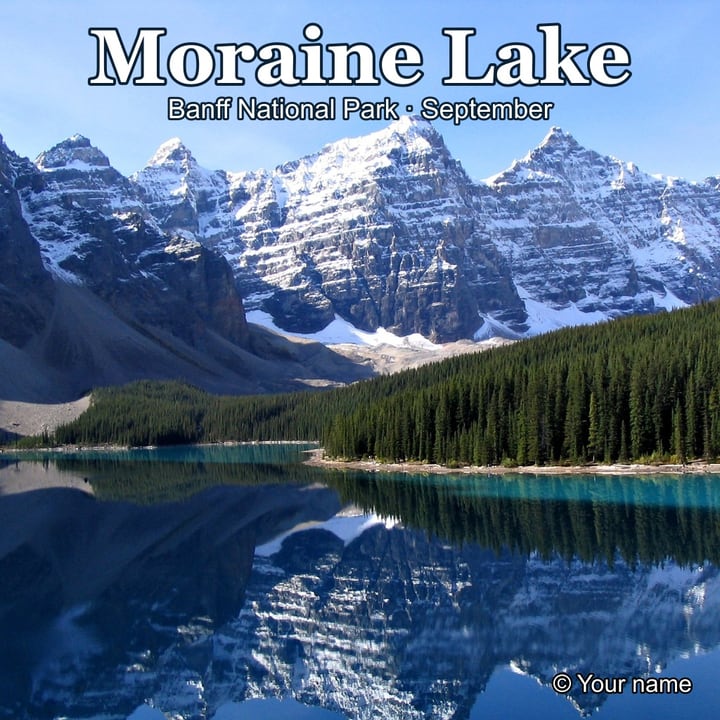
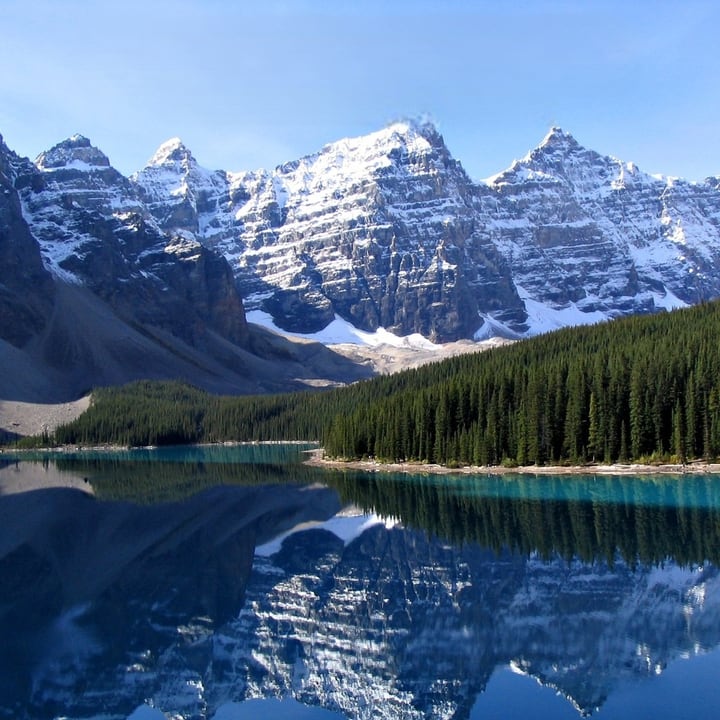

- Sky, water, snow, plain walls. All the fills were clean. This is the easy case, and the one that is nearly always worth doing.
- Grass, leaves. A diagonal watermark across a meadow vanished with the model fills; a clone by hand would take patience.
- Detail. The fast model smudged the reflection in a lake and drew a streak out of a fox's ear. The best-quality model was cleaner in both, but a title that touched the summit of a mountain left the summit slightly softer than the real one, a lighthouse lantern came back as a plausible lantern of a different shape, and a greeting across a kitten's ear left a smudge where the tip of the ear had been.
The rule that comes out of this: the more structure under the text, the more the fill is a guess.
Which method for which picture
- Text at the edge and the shape does not matter: crop. It is lossless in the sense that nothing is invented.
- Text over sky, water, a wall or a blurred background: a fill. The fast model is enough.
- Text over texture or near an edge: the best-quality fill, then look at it at full size. If an edge bends, redo that area in smaller pieces.
- Text over a face, hands, a logo or a pattern you must keep exact: do not rely on any fill. Use a different picture, or accept an obviously edited result.
Tips for a clean result
- Mark a little beyond the letters. Outlines, shadows and the soft edge of letters count as text. A thin line of letter left outside the mark is continued by the fill and shows as a faint outline.
- Mark in smaller pieces when the text is big. The model fills a window of 512 × 512 pixels around each area, so a very large mark on a large picture gets a softer fill.
- Check what was marked. An automatic text finder also marks text that is part of the scene (a shop sign, a number plate) and sometimes marks a pattern that is not text. Erase marks that should stay before you remove.
- Remove, look, then repeat. A second pass on what is left is better than one huge mark.
- Keep the original. Work on a copy: a fill cannot be undone from the saved file.
Our Remove Text from Image finds the text with a small detector, marks it in red for you to check and correct, and fills it in with the fast or the best-quality model in your browser, changing nothing outside the marks. Its page lists exactly how well the detector found text in our tests (99.9% of the text pixels with the starting settings, and some false marks on photos without text).
Beyond text: other things on a picture
The same fills work on a date stamp, a blemish, a person in the background or a power line, with the same rule: easy over plain areas, a guess over structure. Remove Object lets you paint over anything, and Watermark Remover is the same engine for marks on your own pictures.
Find the text in a picture, mark it in red automatically and fill the gaps in with a model that looks at what is around them. Check and correct the marks first, then remove. It runs in your browser. Open the Remove Text from Image.
Frequently asked questions
What is the easiest way to remove text from a photo?
If the text is at an edge, crop it off. Otherwise use a fill tool: mark the text, let the tool fill it from the picture around it, and check the result at full size.
Why does the removed area look smudged?
The fill is a guess drawn from what is around the gap, and a classic fill or the fast model smooths over detail. Try the best-quality model, mark the text in smaller pieces, and avoid marking more than you need to.
Can text over a face be removed?
It can be covered, but the fill cannot know what the face looked like, so the result is a guess and often looks wrong. Use a different picture if the face matters.
Does removing text lower the picture quality?
Only the marked area changes. In our test, pixels more than 40 pixels from the marks were identical afterwards. The filled area can be softer than the photo, and saving as JPG compresses the picture again.
Is it legal to remove text or a watermark?
It depends on whose picture it is and why you do it. On your own pictures it is fine. Removing a credit or watermark from someone else's work does not give you the right to use it. We are not lawyers: ask the owner or use a licensed picture.