
How to put text behind an image
- Add a picture. Drop it anywhere on the page, paste one, or click the box to choose a file. A phone photo, including iPhone HEIC, works too.
- Wait for the subject. The first time, the page downloads a model (44 MB for photos and objects, 176 MB for drawings) and your browser keeps it. Then the picture takes about nine seconds on our test computer. Your words appear on the picture as soon as the subject has been found, because they can only go behind it once it is known.
- Type your words in the box under Words, and drag them on the picture, or use the Across and Down sliders. Make them big: letters that the subject hides in part still read well when most of each letter shows.
- Style them. Font, size, color, opacity, a turn, space between letters, an outline. Add text makes another layer (up to six). Behind the subject can be switched off for a layer that should sit in front.
- Press Download the picture. It is saved as PNG, JPEG or WebP at the picture's size.
Your original file is never changed. The saved file is named after the picture with -text-behind added. Holding the Show the original button shows the picture without any text, to compare.
How it works
The picture is drawn first. Then the text that sits behind the subject is drawn. Then the subject is drawn again on top of it: the picture with a mask as its opacity, where the mask says for every pixel how much of it belongs to the subject. Finally the text that sits in front is drawn. Where the subject is solid, nothing of the letters can show; around it, the letters are visible.
The mask comes from a segmentation model, a neural network that decides for every pixel whether it belongs to the main subject. It is the same pair of models as the Background Remover: IS-Net "general use" (an 8-bit version, MIT license, 44 MB) for photos and objects, and IS-Net Anime (Apache-2.0, 176 MB) for drawings, downloaded once from Hugging Face. Everything else, including the text, is drawn in your tab by your browser. At the soft edge of the subject, where a pixel is a mix of subject and old background, the page uses an estimate of the subject's own color (the "blur fusion" foreground estimate described by Marco Forte in 2021, which we wrote ourselves from the published method), so that the old background does not leak into the letters that show through the edge.
What we checked
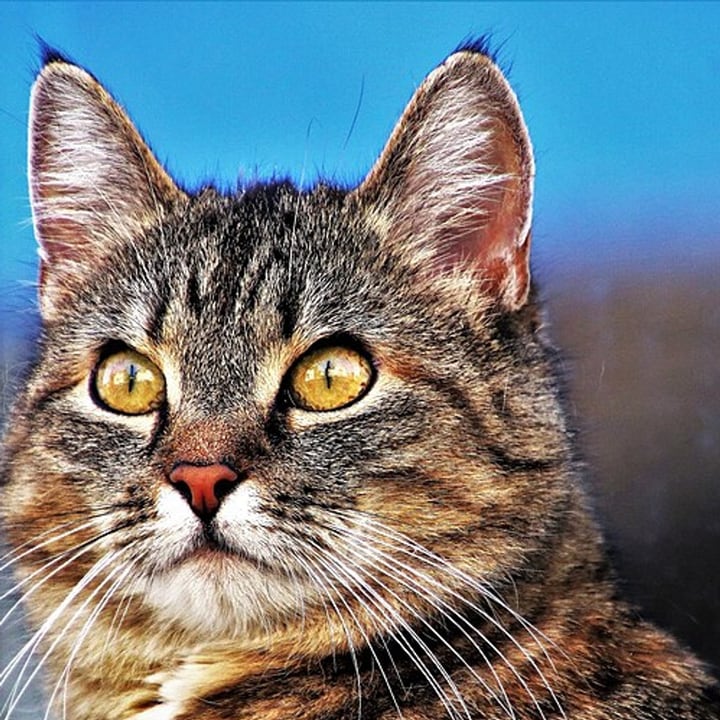
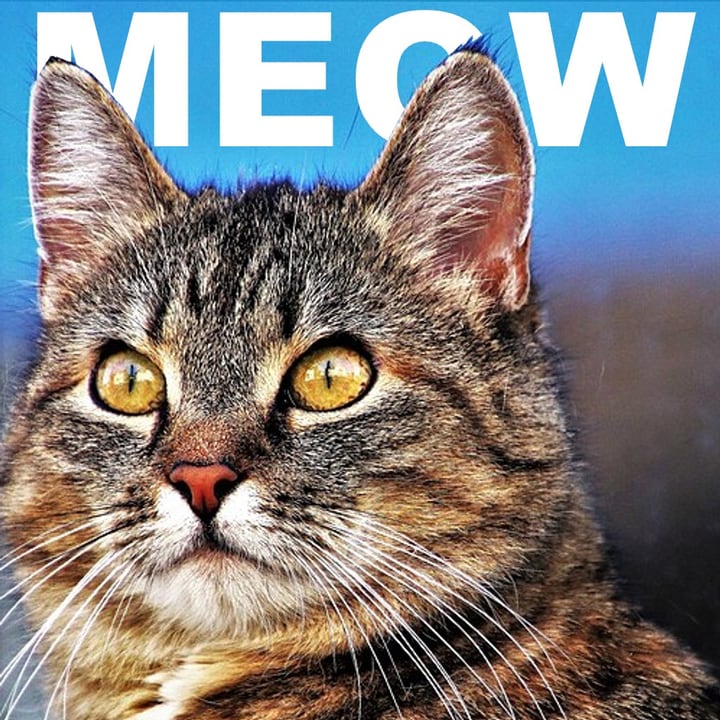
- Text behind the subject leaves the subject alone. On a test photo of a cat, we drew a word behind it and compared the result with the same picture without the word. Of the 517,796 pixels at least two pixels inside the cutout, none had changed, while 21,017 pixels outside it changed strongly. In the saved PNG, 0 of 5,371 sampled interior pixels differed from the picture saved without the word.
- Text in front covers the subject. The same word in front changed 109,476 of those interior pixels.
- Dragging works. Pulling the text with the mouse moved it, the sliders followed, and pulling on an empty part of the picture moved nothing.
- The saved picture is the preview, bigger. Positions are shares of the picture's width and height and sizes are a share of its width, so the saved file has the same layout as the preview.
What the settings do
| Setting | What it changes |
|---|---|
| Words | The text, one or several lines. Capitals makes it upper case (on by default). |
| Font | Eight styles: Impact style, Bold sans, Clean sans, Rounded, Serif, Fashion serif, Monospace and Script. They are fonts your own device already has, so they look a little different on a Mac, a Windows computer and a phone. We do not load fonts from anywhere. |
| Size | The font size as a share of the picture's width, from 2% to 80%. A short word at 25% to 30% spans most of a picture. |
| Color and opacity | The text color, and how see-through it is. |
| Across and Down | The centre of the text as a share of the picture's width and height. You can also drag it. |
| Turn | Rotation from −180° to 180°. |
| Letter space | Extra space between letters, as a share of the font size. Negative values tighten them. With spacing, each letter is placed by itself, so the kerning of the font is not applied. |
| Outline | A stroke around the letters, up to 30% of the font size, with its own color. |
| Behind the subject | On: the layer sits between the picture and the subject. Off: it sits in front of everything. |
| Edge, Trim the edge, Picture type | How sharp the subject's cut is, how far it is pulled in (to remove a fringe of the old background) and which model looks for the subject. Photo or object is the default. |
What works well, and what does not
- Works well: a clear subject that does not fill the whole picture, with some sky, wall or room around it. Put the words in the gap and let the subject's head, shoulders or roof overlap their lower part. In our cat example, the word MEOW sits in the sky and the ears cover part of the letters.
- A subject that fills the frame: there is little left for the words to show around. Make the text bigger, move it to a corner, or crop the picture with more space around the subject.
- The model decides what the subject is. If two things stand out, it may keep both and both will cover the text, and if it picks the wrong one you cannot point at the one you want here. Try the other picture type, or crop. The Cut Out Object tool lets you click the thing you want, but it makes a cutout and not this effect.
- Hair and fur: the edge can come out slightly rough, and the tips can keep a little of the old background's color. Trim the edge pulls the cut inward. Thin things such as wires and whiskers are the first to go when you raise it.
- Words that are too small: letters that sit completely behind the subject are invisible. That is the effect, but it can hide a short word entirely: if a layer seems to be missing, move it or make it bigger.
Size, speed and limits
- Speed. Finding the subject takes about nine seconds per picture on our test computer, with either model, once the model is downloaded; phones and older computers take longer. After that, moving text is instant. Saving a 3000 × 2250 picture, which includes working out the subject's edge colors at full size, took about 2.2 seconds.
- Big pictures. A picture is worked on and saved at up to 3000 pixels on the longer side. A bigger one is made smaller, and the page says so. A picture over 16,384 pixels on a side is refused with a message. The model looks at a 1024 × 1024 version of your picture, so the outline of the cut cannot be sharper than that allows.
- One picture at a time. The text is placed on a particular picture, so there is no batch.
- See-through pictures. A PNG with a see-through background is put on white first, because the text needs something to sit on.
- Saving. PNG keeps everything exactly. JPEG and WebP have a quality slider.
Where the work happens
- The picture is made inside this tab. The page downloads a model from Hugging Face the first time you use it, and your file on disk is never changed or deleted.
- For what this site collects and keeps, see our privacy policy.
Frequently asked questions
How do I put text behind a person or a pet in a photo?
Add the photo, type your words and drag them to where the subject should overlap them. The page finds the subject and puts the picture back on top of the letters. Make the text big and leave part of each letter showing so that the word stays readable.
Why can I not see my text?
It is probably completely behind the subject. Move it with the Across and Down sliders to where there is background, make it bigger, or switch off Behind the subject for that layer. Also check that the subject was found: the note under the preview says which model was used.
Can I put text in front of the subject too?
Yes. Each text layer has its own Behind the subject switch. A layer with it off is drawn over the subject. You can mix behind and in front, up to six layers in total.
Which fonts can I use?
Eight styles that map to fonts your device already has, such as Impact, Arial Black, Georgia, Courier and a script font. They look a little different on a Mac, a Windows computer and a phone, and the page does not load fonts from the internet. The saved picture uses the fonts of the device that saves it.
Why does the edge of my subject look rough or have a colored fringe?
The model's cut is not perfect on hair, fur and fine detail. Raise Trim the edge to pull the cut inward, change Edge to make it harder or softer, or try the other picture type. A picture with a calmer background gives a cleaner edge.
Can it find a person, or only animals and objects?
The model finds the main subject, whatever it is: a person, a pet, a car, a product, a drawn character (with the drawing model). How well depends on how clearly one thing stands out from its surroundings.
Can I do many pictures at once?
No: the text is placed on one particular picture. Press Another picture to start the next. To prepare many pictures at once, the Make Background White and Sticker Maker tools take whole folders.
Does the saved picture keep its quality?
It is saved at the picture's own size (up to 3000 pixels on the longer side). PNG keeps it exactly; JPEG and WebP have a quality slider. The text is drawn at the saved size, so it is as sharp as the picture.
Is my picture sent anywhere to be edited?
The picture is made in your browser tab; the model is downloaded to it. For what the site collects and keeps, see our privacy policy.